
Gesture Controls for Android w/Kotlin
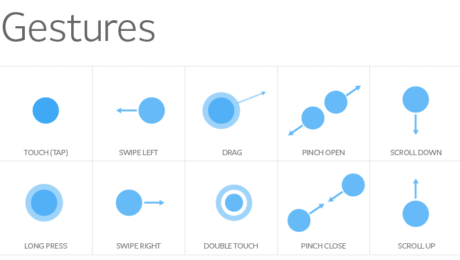
If you have never used or unaware of what is gestures control. Incorporating gesture functionality makes an app more functional and engaging for users. As you will find in this tutorial the objective will be to implement two different types of gestures in the application. Assuming this is not your first rodeo lets dive into the development process.
Project Creation
Well of course you need somewhere to start so firing up your Android Studio it you haven’t already. Select the project you prefer to use but for this tutorial we are going to use the “Empty Activity” template just to keep it simple. (If you require more content on the different templates check out: Blah Blah)
NOTE: minimum SDK for this project is 5.0
Update Activity Layout
After you project has finished loading and building itself, we are going to head over ‘activity_main.xml’. First let’s change the parent layout from constraint to frame layout. Withing the frame we are going to use the Material Cardview and inside the card view we will add the constraint layout. Last the constraint layout will hold the important stuff which are buttons and text view. Let’s see how the code looks altogether.
<?xml version="1.0" encoding="utf-8"?>
<com.google.android.material.circularreveal.CircularRevealFrameLayout xmlns:android="http://schemas.android.com/apk/res/android"
    xmlns:app="http://schemas.android.com/apk/res-auto"
    xmlns:tools="http://schemas.android.com/tools"
    android:layout_width="match_parent"
    android:layout_height="match_parent"
    android:id="@+id/layout_parent"
    android:background="@color/design_default_color_primary"
    tools:context=".MainActivity">

    <com.google.android.material.card.MaterialCardView
        android:layout_width="match_parent"
        android:layout_height="match_parent"
        android:id="@+id/cv_display"
        android:layout_gravity="center"
        android:layout_margin="20dp"
        app:cardCornerRadius="15dp">

        <androidx.constraintlayout.widget.ConstraintLayout
            android:layout_width="match_parent"
            android:layout_height="match_parent">

            <androidx.appcompat.widget.AppCompatTextView
                android:id="@+id/tv_question"
                android:layout_width="wrap_content"
                android:layout_height="wrap_content"
                android:layout_marginTop="20dp"
                android:text="@string/txt_question_value"
                android:textSize="70sp"
                app:layout_constraintEnd_toEndOf="parent"
                app:layout_constraintStart_toStartOf="parent"
                app:layout_constraintTop_toTopOf="parent" />

            <androidx.appcompat.widget.AppCompatTextView
                android:id="@+id/tv_solution"
                android:layout_width="wrap_content"
                android:layout_height="wrap_content"
                android:layout_below="@id/tv_question"
                android:layout_marginTop="10dp"
                android:text="@string/txt_answer_value"
                android:textSize="40sp"
                app:layout_constraintBottom_toTopOf="@id/tv_points"
                app:layout_constraintEnd_toEndOf="parent"
                app:layout_constraintStart_toStartOf="parent"
                app:layout_constraintTop_toBottomOf="@id/tv_question" />

            <com.google.android.material.floatingactionbutton.FloatingActionButton
                android:id="@+id/btn_addition"
                android:layout_width="wrap_content"
                android:layout_height="wrap_content"
                android:layout_below="@id/tv_question"
                android:contentDescription="@string/txt_add_descriptor"
                android:src="@drawable/ic_baseline_add_24"
                app:layout_constraintEnd_toEndOf="parent"
                app:layout_constraintBottom_toBottomOf="@+id/tv_solution"
                app:layout_constraintStart_toEndOf="@+id/tv_solution"
                app:layout_constraintTop_toTopOf="@+id/tv_solution" />

            <com.google.android.material.floatingactionbutton.FloatingActionButton
                android:id="@+id/btn_subtraction"
                android:layout_width="wrap_content"
                android:layout_height="wrap_content"
                android:layout_below="@id/tv_question"
                android:layout_toStartOf="@+id/tv_solution"
                android:contentDescription="@string/txt_minus_descriptor"
                android:src="@drawable/ic_baseline_remove_24"
                app:layout_constraintBottom_toBottomOf="@id/tv_solution"
                app:layout_constraintEnd_toStartOf="@+id/tv_solution"
                app:layout_constraintStart_toStartOf="parent"
                app:layout_constraintTop_toTopOf="@+id/tv_solution" />

            <androidx.appcompat.widget.AppCompatTextView
                android:id="@+id/tv_points"
                android:layout_width="wrap_content"
                android:layout_height="wrap_content"
                android:layout_below="@id/tv_solution"
                android:layout_marginBottom="30dp"
                android:text="@string/txt_string_score"
                android:textSize="30sp"
                app:layout_constraintBottom_toBottomOf="parent"
                app:layout_constraintEnd_toEndOf="@id/btn_addition"
                app:layout_constraintStart_toStartOf="@id/btn_subtraction" />

        </androidx.constraintlayout.widget.ConstraintLayout>
    </com.google.android.material.card.MaterialCardView>
</com.google.android.material.circularreveal.CircularRevealFrameLayout>
inner class GestureControlListener : GestureDetector.SimpleOnGestureListener() {

        override fun onFling(evt1: MotionEvent, evt2: MotionEvent, xVelocity: Float, yVelocity: Float) : Boolean {

            pts -= 75
            generateQuestion(userAnsw)
            view.setBackgroundColor(Random.nextInt())

            Snackbar.make(view, "Skipped", Snackbar.LENGTH_SHORT).show()
            cv.text = "Current Score: $pts"
            return true
        }
}
Writing Kotlin Code
Now we’ll create an inner class for detecting gestures that extends to ‘GestureDetector.SimpleOnGestureListener’. Within the class we will keep it simple and override the two functions that detects fling and double tap gestures.
class MainActivity : AppCompatActivity() {

    /** Global Variables Start **/
    //gesture
    lateinit var gdc: GestureDetectorCompat

    ///Textviews
    lateinit var qv: AppCompatTextView
    lateinit var sv: AppCompatTextView
    lateinit var cv: AppCompatTextView

    //Buttons
    lateinit var ab: FloatingActionButton
    lateinit var sb: FloatingActionButton

    //view
    lateinit var view:FrameLayout

    //integer variables
    var pts = 0
    var userAnsw = 0
    var questionValue1 = 0
    var questionValue2 = 0
    /** Global Variables end **/

    override fun onCreate(savedInstanceState: Bundle?) {
        super.onCreate(savedInstanceState)
        setContentView(R.layout.activity_main)
    }

}
Comprehending what we just declared. First the GestureDetectorCompat object contains functions which we will override to enable us to respond to the different gestures. Then we have the next 6 variables that are associated with the Views within the cardview. Then the variables that will represent the score along with the users answer, and then the question that is displayed to the user.
Setup Views and Listeners
We’ll start by referring to all our views. After we have accomplished that will set up onClickListerners to increase or decrease with the floating action button. Now that the click listeners are set, we need to define a way to generate new questions for the user to answer. We’ll create a function called generateQuestion that accepts a numeric parameter. The objective of the function will assign two random numbers based on the parameter passed in and assigned to the variable created earlier questionValue1 and questionValue2.
class MainActivity : AppCompatActivity() {

    /** Global Variables Start **/
    //gesture
    lateinit var gdc: GestureDetectorCompat

    ///Textviews
    lateinit var qv: AppCompatTextView
    lateinit var sv: AppCompatTextView
    lateinit var cv: AppCompatTextView

    //Buttons
    lateinit var ab: FloatingActionButton
    lateinit var sb: FloatingActionButton

    //view
    lateinit var view:FrameLayout

    //integer variables
    var pts = 0
    var userAnsw = 0
    var questionValue1 = 0
    var questionValue2 = 0
    /** Global Variables end **/

    override fun onCreate(savedInstanceState: Bundle?) {
        super.onCreate(savedInstanceState)
        setContentView(R.layout.activity_main)

        //lets do some work
        view = findViewById<FrameLayout>(R.id.layout_parent)
        qv =  findViewById(R.id.tv_question)
        sv = findViewById(R.id.tv_solution)
        cv = findViewById(R.id.tv_points)
        ab = findViewById(R.id.btn_addition)
        sb = findViewById(R.id.btn_subtraction)

        //assign listeners
        ab.setOnClickListener {
            userAnsw++
            sv.text = "$userAnsw"
        }

        sb.setOnClickListener {
            userAnsw--
            sv.text = "$userAnsw"
        }

        generateQuestion(userAnsw)
    }


    //generate question function for user
    fun generateQuestion(num: Int) {
        var randomNum = 0
        randomNum = if (num == 0) 12
        else num

        questionValue1 = Random.nextInt(randomNum)
        questionValue2 = Random.nextInt(randomNum)

        val problem = "$questionValue1 + $questionValue2"
        qv.text = problem
    }
}
Creating an Inner Class
Now we’ll create an inner class for detecting gestures that extends to ‘GestureDetector.SimpleOnGestureListener’. Within the class we will keep it simple and override the two functions that detects fling and double tap gestures.
class MainActivity : AppCompatActivity() {

    /** Global Variables Start **/
    //gesture
    lateinit var gdc: GestureDetectorCompat

    ///Textviews
    lateinit var qv: AppCompatTextView
    lateinit var sv: AppCompatTextView
    lateinit var cv: AppCompatTextView

    //Buttons
    lateinit var ab: FloatingActionButton
    lateinit var sb: FloatingActionButton

    //view
    lateinit var view:FrameLayout

    //integer variables
    var pts = 0
    var userAnsw = 0
    var questionValue1 = 0
    var questionValue2 = 0
    /** Global Variables end **/

    override fun onCreate(savedInstanceState: Bundle?) {
        super.onCreate(savedInstanceState)
        setContentView(R.layout.activity_main)

        //lets do some work
        view = findViewById<FrameLayout>(R.id.layout_parent)
        qv =  findViewById(R.id.tv_question)
        sv = findViewById(R.id.tv_solution)
        cv = findViewById(R.id.tv_points)
        ab = findViewById(R.id.btn_addition)
        sb = findViewById(R.id.btn_subtraction)

        //assign listeners
        ab.setOnClickListener {
            userAnsw++
            sv.text = "$userAnsw"
        }

        sb.setOnClickListener {
            userAnsw--
            sv.text = "$userAnsw"
        }

        generateQuestion(userAnsw)
    }


    //generate question function for user
    fun generateQuestion(num: Int) {
        var randomNum = 0
        randomNum = if (num == 0) 12
        else num

        questionValue1 = Random.nextInt(randomNum)
        questionValue2 = Random.nextInt(randomNum)

        val problem = "$questionValue1 + $questionValue2"
        qv.text = problem
    }

    /**
    *
    * */
    inner class GestureControlListener : GestureDetector.SimpleOnGestureListener() {


    }
}
The function we just wrote above objective is supposed to detect the fling gesture and when a user uses the fling gesture the application will skip the question and displays a new question. Then we call the function generateQuestion and new questions will be assigned to the AppCompatTextview. A brief message will appear to inform the user that the question was skipped.
class MainActivity : AppCompatActivity() {

    /** Global Variables Start **/
    //gesture
    lateinit var gdc: GestureDetectorCompat

    ///Textviews
    lateinit var qv: AppCompatTextView
    lateinit var sv: AppCompatTextView
    lateinit var cv: AppCompatTextView

    //Buttons
    lateinit var ab: FloatingActionButton
    lateinit var sb: FloatingActionButton

    //view
    lateinit var view:FrameLayout

    //integer variables
    var pts = 0
    var userAnsw = 0
    var questionValue1 = 0
    var questionValue2 = 0
    /** Global Variables end **/

    override fun onCreate(savedInstanceState: Bundle?) {
        super.onCreate(savedInstanceState)
        setContentView(R.layout.activity_main)

        //lets do some work
        view = findViewById<FrameLayout>(R.id.layout_parent)
        qv =  findViewById(R.id.tv_question)
        sv = findViewById(R.id.tv_solution)
        cv = findViewById(R.id.tv_points)
        ab = findViewById(R.id.btn_addition)
        sb = findViewById(R.id.btn_subtraction)

        //assign listeners
        ab.setOnClickListener {
            userAnsw++
            sv.text = "$userAnsw"
        }

        sb.setOnClickListener {
            userAnsw--
            sv.text = "$userAnsw"
        }

        generateQuestion(userAnsw)
    }

    //generate question function for user
    fun generateQuestion(num: Int) {
        var randomNum = 0
        randomNum = if (num == 0) 12
        else num

        questionValue1 = Random.nextInt(randomNum)
        questionValue2 = Random.nextInt(randomNum)

        val problem = "$questionValue1 + $questionValue2"
        qv.text = problem
    }

    /**
    *
    * */
    inner class GestureControlListener : GestureDetector.SimpleOnGestureListener() {

        override fun onFling(evt1: MotionEvent, evt2: MotionEvent, xVelocity: Float, yVelocity: Float) : Boolean {

            pts -= 75
            generateQuestion(userAnsw)
            view.setBackgroundColor(Random.nextInt())

            Snackbar.make(view, "Skipped", Snackbar.LENGTH_SHORT).show()
            cv.text = "Current Score: $pts"
            return true
        }

    }
}
Now we’ll add another function to override in the inner class which is onDoubleTap. As you are probably already aware this function detects a double tap gesture. The double tap gesture will act as a submission for the user answers to the question presented. Upon submission the answer is checked in the conditional and they are found equal the user score is increased and reflected in the view. A new problem is generated but if is found not to be equal then a deduction from the score is applied and brief message is display to the user before generating a new question.
inner class GestureControlListener : GestureDetector.SimpleOnGestureListener() {

        override fun onFling(evt1: MotionEvent, evt2: MotionEvent, xVelocity: Float, yVelocity: Float) : Boolean {

            pts -= 75
            generateQuestion(userAnsw)
            view.setBackgroundColor(Random.nextInt())

            Snackbar.make(view, "Skipped", Snackbar.LENGTH_SHORT).show()
            cv.text = "Current Score: $pts"
            return true
        }


        override fun onDoubleTap(evt: MotionEvent?): Boolean {

            if (userAnsw == questionValue1 + questionValue2) pts = 100*125
            else {
                pts -= 125
                view.setBackgroundColor(Color.RED)
                Snackbar.make(view, "Incorrect", Snackbar.LENGTH_SHORT).show()
            }

            generateQuestion(userAnsw)
            cv.text = "Current Score: $pts"
            return true
        }
}
Finally, we need to override onTouch in the MainActivity. When a touch is detected the function fires, so we’ll use this function to call the gestureDetector onTouchEventFunction.
class MainActivity : AppCompatActivity() {

    /** Global Variables Start **/
    //gesture
    lateinit var gdc: GestureDetectorCompat

    ///Textviews
    lateinit var qv: AppCompatTextView
    lateinit var sv: AppCompatTextView
    lateinit var cv: AppCompatTextView

    //Buttons
    lateinit var ab: FloatingActionButton
    lateinit var sb: FloatingActionButton

    //view
    lateinit var view:FrameLayout

    //integer variables
    var pts = 0
    var userAnsw = 0
    var questionValue1 = 0
    var questionValue2 = 0
    /** Global Variables end **/

    override fun onCreate(savedInstanceState: Bundle?) {
        super.onCreate(savedInstanceState)
        setContentView(R.layout.activity_main)

        //lets do some work
        view = findViewById<FrameLayout>(R.id.layout_parent)
        qv =  findViewById(R.id.tv_question)
        sv = findViewById(R.id.tv_solution)
        cv = findViewById(R.id.tv_points)
        ab = findViewById(R.id.btn_addition)
        sb = findViewById(R.id.btn_subtraction)

        //assign listeners
        ab.setOnClickListener {
            userAnsw++
            sv.text = "$userAnsw"
        }

        sb.setOnClickListener {
            userAnsw--
            sv.text = "$userAnsw"
        }

        generateQuestion(userAnsw)
        gdc = GestureDetectorCompat(this, GestureControlListener())
    }

    override fun onTouchEvent(evt: MotionEvent): Boolean {
        gdc.onTouchEvent(evt)
        return true
    }

    //generate question function for user
    fun generateQuestion(num: Int) {
        var randomNum = 0
        randomNum = if (num == 0) 12
        else num

        questionValue1 = Random.nextInt(randomNum)
        questionValue2 = Random.nextInt(randomNum)

        val problem = "$questionValue1 + $questionValue2"
        qv.text = problem
    }

    /**
    *
    * */
    inner class GestureControlListener : GestureDetector.SimpleOnGestureListener() {

        override fun onFling(evt1: MotionEvent, evt2: MotionEvent, xVelocity: Float, yVelocity: Float) : Boolean {

            pts -= 75
            generateQuestion(userAnsw)
            view.setBackgroundColor(Random.nextInt())

            Snackbar.make(view, "Skipped", Snackbar.LENGTH_SHORT).show()
            cv.text = "Current Score: $pts"
            return true
        }


        override fun onDoubleTap(evt: MotionEvent?): Boolean {

            if (userAnsw == questionValue1 + questionValue2) pts = 100*125
            else {
                pts -= 125
                view.setBackgroundColor(Color.RED)
                Snackbar.make(view, "Incorrect", Snackbar.LENGTH_SHORT).show()
            }

            generateQuestion(userAnsw)
            cv.text = "Current Score: $pts"
            return true
        }
    }
}
Install, Test, Conclude
Use the virtual or install on your device. When you increase or decrease the answer to the sum of the presented question. To submit your answer then double tap and if the answer is correct, you score will increase and a new problem will be presented to you. However, if you fling across the screen then problem is skipped, and a message is displayed to your user. With that I believe we have accomplished the task set out before us. If you are confused about anything, please don’t hesitate to contact me or check out the github repository on the project. You now have the “JUICE”!
Note: This class override a variety of functions
- Published in Android, blog, Kotlin, Mobile Development, Programming Languages, Tutorial
Android Rating: In-App Review API

Well Congratulations because you have coded, debugged and now published you app. The app itself is being used around the world by everyone but unfortunately that is not the end of the road for the application. Now that app is published the new objective is now collecting feedback and producing new updates which is accomplished by taking users feedback. An app rating and reviews are crucial factor to keep your app alive and have the downloads keep going. In the past the user would be prompted with a dialog with fancy buttons and upon ‘click’ the user is redirected to the Play Store. If the end user is anything like me, I find it annoying and complicated for the whole transition. Fear not Google understood and provided and API, which provide a rating widget in the app itself and the end user never has to leave the app itself.
Keep In Mind
- This API only functions with Android 5(API level 20+)
- The API is subject to quotas. Also the API decides how often the review widget should be shown to user.
- Note: More about quotas
- The flow process is controlled by the API. As the developer/designer you should not waste your time trying to alter the design.
- Note: More about Design Guidelines
- Furthermore the flow doesn’t notify us if the end user has completed the review or not
Integrating the API
Simple task here and can be accomplished with very little or minimal code. So enough talk and more implementing:
Since this API is apart of the Play Core API, so we need to add it to the library within the buid.gradle. In the code below you will notice that I am including the material library because I want to show a fallback if there is any error in-app review API.
//build.gradle
dependencies {

    implementation 'androidx.appcompat:appcompat:1.3.0'
    implementation 'com.google.android.material:material:1.5.0' //optional material library
    implementation 'com.google.android.play:core:1.10.3' //play core library
    implementation 'androidx.constraintlayout:constraintlayout:2.0.4'
    testImplementation 'junit:junit:4.13.2'
    androidTestImplementation 'androidx.test.ext:junit:1.1.3'
    androidTestImplementation 'androidx.test.espresso:espresso-core:3.4.0'
}
Now that has been accomplished, we need to create an instance of ReviewManager. This class provides necessary methods to start the review flow.
- New instance created, now a call the requestedReviewFlow() task returns ReviewInfo upon successful completion
- ReviewInfo object , needs to call launchReviewFlow() method which begins the review flow
- If requestReviewFlow fails, then we launch the usual Rate App dialog which then redirects the user to the Play Store.
- showRateApp() method starts the in-app review flow. The showRateAppFallbackDialog() method then acts as a fallback method if requestedReviewFlow throws an error.
package com.programmingninja.inappreview;

import androidx.appcompat.app.AppCompatActivity;
import android.os.Bundle;
import com.google.android.material.dialog.MaterialAlertDialogBuilder;
import com.google.android.play.core.review.ReviewInfo;
import com.google.android.play.core.review.ReviewManager;
import com.google.android.play.core.review.ReviewManagerFactory;
import com.google.android.play.core.tasks.Task;


public class MainActivity extends AppCompatActivity {

    private ReviewManager rm;

    @Override
    protected void onCreate(Bundle savedInstanceState) {
        super.onCreate(savedInstanceState);
        setContentView(R.layout.activity_main);

        doInit();
    }

    private void doInit() {
        rm = ReviewManagerFactory.create(this);
        findViewById(R.id.btn_rating).setOnClickListener(view -> showRateApp());
    }

    public void showRateApp() {
        Task<ReviewInfo> request = rm.requestReviewFlow();
        request.addOnCompleteListener(task -> {
           if (task.isSuccessful()) {
               //reviewinfo object
               ReviewInfo ri = task.getResult();

               Task<Void> flow = rm.launchReviewFlow(this, ri);
               flow.addOnCompleteListener(task1 -> {

               });
           } else {
               //
               showRateAppFallbackDialog();
           }
        });
    }

    private void showRateAppFallbackDialog() {
        new MaterialAlertDialogBuilder(this)
                .setTitle(R.string.app_title)
                .setMessage(R.string.app_user_message)
                .setPositiveButton(R.string.app_btn_positive, (dialog, which) -> {

                })
                .setNegativeButton(R.string.app_btn_negative, (dialog, which) -> {

                })
                .setNeutralButton(R.string.app_btn_neutral, (dialog, which) -> {

                }).show();
    }
}
Install, Test, Conclude
To test the this action, you should have the app approved and published within the PlayStore. Don’t worry the app doesn’t need to be available to the public.
- Published in Android, blog, Java, Programming Languages, Tutorial
QR Reader in Android w/ Kotlin

You may have noticed that QR codes are popping up all around and many of us have become accustomed to using these codes to quickly access information. As a developer know that qr codes are quick, easy, convenient, and alluring for users to scan. Within this read you will learn to implement a QR code scanner in Android Studio with very few steps.
Project Creation
Well of course you need somewhere to start so firing up your Android Studio it you haven’t already. Select the project you prefer to use but for this tutorial we are going to use the “Empty Activity” template just to keep it simple. (If you require more content on the different templates check out: Blah Blah)
NOTE: minimum SDK is 7.0
Adding Gradle Dependency and Manifest
Before we can access the class from ZXing we need to import the dependency to the module build.gradle file. (I always suggest using the latest stable version with that I suggest using the project structure when import dependencies) We also need to add permission to the AndroidMainfest.xml to access to the camera.
NOTE: If you are not familiar with using the Project Structure, please see blog regarding this feature in android studio.
// build.gradle
dependencies {

    implementation 'androidx.core:core-ktx:1.7.0'
    implementation 'androidx.appcompat:appcompat:1.3.0'
    implementation 'com.google.android.material:material:1.4.0'
    implementation 'androidx.constraintlayout:constraintlayout:2.0.4'
    implementation 'com.journeyapps:zxing-android-embedded:4.3.0' //added
    testImplementation 'junit:junit:4.13.2'
    androidTestImplementation 'androidx.test.ext:junit:1.1.3'
    androidTestImplementation 'androidx.test.espresso:espresso-core:3.4.0'
}
// AndroidMainifest.xml
<manifest xmlns:android="http://schemas.android.com/apk/res/android"
    package="com.programmingninja.qrreader">

    <uses-permission android:name="android.permission.CAMERA" />

    <application
        android:allowBackup="true"
        android:icon="@mipmap/ic_launcher"
        android:label="@string/app_name"
        android:roundIcon="@mipmap/ic_launcher_round"
        android:supportsRtl="true"
        android:theme="@style/Theme.QRReader">
        <activity
            android:name=".MainActivity"
            android:exported="true">
            <intent-filter>
                <action android:name="android.intent.action.MAIN" />
                <category android:name="android.intent.category.LAUNCHER" />
            </intent-filter>
        </activity>
    </application>
</manifest>
Updating Layout
Now that we have completed the lightweight stuff lets begin by updating the activity_main.xml. We are going to keep the ConstraintLayout and add within it AppCompatTextView and AppCompatImageButton.
<?xml version="1.0" encoding="utf-8"?>
<androidx.constraintlayout.widget.ConstraintLayout xmlns:android="http://schemas.android.com/apk/res/android"
    xmlns:app="http://schemas.android.com/apk/res-auto"
    xmlns:tools="http://schemas.android.com/tools"
    android:layout_width="match_parent"
    android:layout_height="match_parent"
    tools:context=".MainActivity">

    <androidx.appcompat.widget.AppCompatTextView
        android:layout_width="wrap_content"
        android:layout_height="wrap_content"
        android:id="@+id/tv_message"
        android:text="Tap Button Below to Begin Scanning!"
        app:layout_constraintBottom_toBottomOf="parent"
        app:layout_constraintLeft_toLeftOf="parent"
        app:layout_constraintRight_toRightOf="parent"
        app:layout_constraintTop_toTopOf="parent" />

    <androidx.appcompat.widget.AppCompatImageButton
        android:layout_width="wrap_content"
        android:layout_height="wrap_content"
        android:id="@+id/img_btn_qr"
        app:layout_constraintBottom_toBottomOf="parent"
        app:layout_constraintEnd_toEndOf="parent"
        app:layout_constraintStart_toStartOf="parent"
        app:layout_constraintTop_toBottomOf="@+id/tv_message"
        android:src="@drawable/ic_baseline_qr_code_scanner_24"/>
</androidx.constraintlayout.widget.ConstraintLayout>
Finally Some Kotlin Writing
Within this class we need to use the ZXing IntentIntegrator to override the onActivityResult function. IntentIntegrator allows us to start the scanner with a few lines of code. The result will then appear in our Activity’s and if the user has not provided permission, yet they are present a message to provide access. After access is provided and user scans a code a new AlertDialog is present to perform action from the QR code itself. I will provide the code and blew the snippet you will be informed of everything is greater detail
package com.programmingninja.qrreader

import android.app.SearchManager
import android.content.DialogInterface
import android.content.Intent
import androidx.appcompat.app.AppCompatActivity
import android.os.Bundle
import androidx.appcompat.app.AlertDialog
import androidx.appcompat.widget.AppCompatButton
import androidx.appcompat.widget.AppCompatImageButton
import androidx.appcompat.widget.AppCompatTextView
import com.google.zxing.integration.android.IntentIntegrator

@Suppress("DEPRECATION")
class MainActivity : AppCompatActivity() {
    override fun onCreate(savedInstanceState: Bundle?) {
        super.onCreate(savedInstanceState)
        setContentView(R.layout.activity_main)

        val msgTxt:AppCompatTextView = findViewById(R.id.tv_message)
        val imgBtn:AppCompatImageButton = findViewById(R.id.img_btn_qr)

        imgBtn.setOnClickListener {
            val intentIntegrator = IntentIntegrator(this)

            intentIntegrator.setDesiredBarcodeFormats(listOf(IntentIntegrator.QR_CODE))
            intentIntegrator.initiateScan()
        }
    }

    override fun onActivityResult(requestCode: Int, resultCode: Int, data: Intent?) {
        super.onActivityResult(requestCode, resultCode, data)

        val res = IntentIntegrator.parseActivityResult(resultCode,data)

        if (res != null) {
            AlertDialog.Builder(this).setMessage("Would you like to go to ${res.contents}?")
                .setPositiveButton("Accept", DialogInterface.OnClickListener{
                    dialogInterface, i -> val intent = Intent(Intent.ACTION_WEB_SEARCH)
                    intent.putExtra(SearchManager.QUERY, res.contents)
                    startActivity(intent)
                })
                .setNegativeButton("Deny", DialogInterface.OnClickListener{ dialogInterface, i ->  })
                .create()
                .show()
        }
    }
}
Let’s first review the onCreate function, we are referencing the views in the layout, then we assign an OnClickListener to our AppCompatImageButton which then use an instance of IntentIntegrator which begin the scan. We are settubg tge setDesiredBarcodeFormats function on the variable intentIntegrator. This function allows us to narrow down our barcode format to only focus. The ZXing IntentIntegrator class has support for several barcode formats, however for this tutorial we are going to focus on QR codes. Start the scan using the variable iIntegrator initiateScan function.
Now we create a function called onActivityResult and for this function to work we have to call the super.OnActivityResult function. In this function we create a variable called ‘res’ which holds the data collected from iIntegrator parseActivityResult function. Inside the function is a conditional statement to check if the scan is empty
Within the statement, we build an AlertDialog with a positive and negative button and each button have an action assigned to them. If the positive button is selected then an Intent will be used to start an internet search with QR code’s data but if the negative button is selected then user remains within the app.
Install, Test and Verify
If everything is implemented correctly, we can test the app, run it in the android studio and install it on a device. Now that the app installed, the app will open automatically and display the text and image button. when the user it will request permission to access the camera in your Setting. The camera reads the code and presents it in the AlertDialog a message that is stored in the qr code.

android-tutorial (this link opens in a new window) by daurislittle (this link opens in a new window)
Android Tutorial beginner and advance
- Published in Android, blog, Kotlin, Programming Languages, Tutorial
Creating Advance Custom Snackbar w/ Kotlin

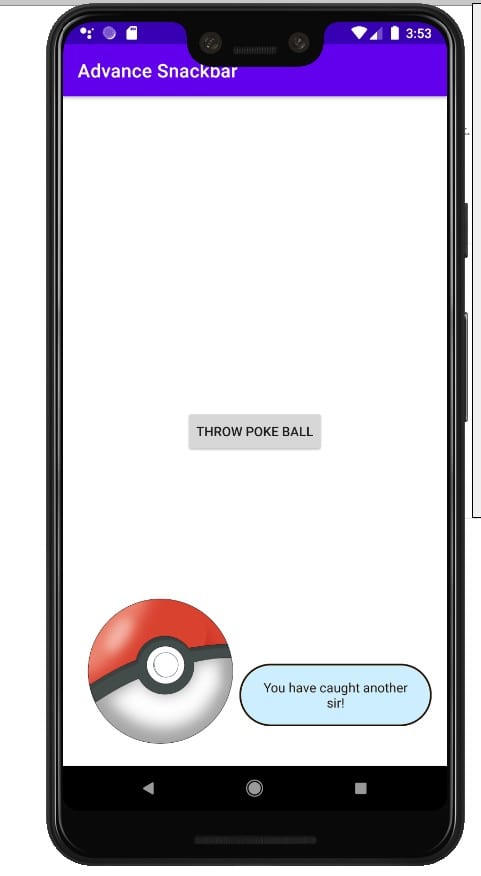
Ask 100 different developers about what they find most exciting about android development and you will get as many different responses. Personally, I find the customization of the various framework and design libraries. Consider it as such if there is something that doesn’t fit your needs within the development process that as a developer we create custom views without any issues. Within this post, we will be working on a custom Snackbar.
What is a Snackbar? Well simply enough a Snackbars provide lightweight feedback about an operation. They show a brief message at the bottom of the screen on mobile and lower left on larger devices. Snackbars appear above all other elements on screen and only one can be displayed at a time.
Though the Snackbar by default has a few customizable features, consider the fact that the default features may not match the application style. Fortunately, we can easily create a custom Snackbar by implementing just a few classes. If you are unfamiliar with what a Snackbar is please review my previous post regarding the library. Be aware that it may be a little confusing at glance but fear not we will review it the most important part that is to highlight which are:
BottomTransientBottomBarwhich is the parent view- ContentViewCallback
make()a factory method- find the parent view, inflate the custom view, and set additional properties
- customizable method
Custom View
It is assumed that you have already created/opened your current project within your IDE. Now we create a custom view that will be displayed at the bottom of the screen when called. This design will be the simplest form which contains an image and static message.
class CustomSnackbarView @JvmOverloads constructor(context: Context, attrs: AttributeSet? = null, defStyleAttr: Int = 0) : ConstraintLayout (context, attrs, defStyleAttr) {

    private val customImg : AppCompatImageView

    init {
        View.inflate(context, R.layout.view_custom_snackbar, this)
        clipToPadding = false
        this.customImg = findViewById(R.id.img_snack)
    }
}
this is accompanied by the following layout XML
<?xml version="1.0" encoding="utf-8"?>
<merge
    xmlns:android="http://schemas.android.com/apk/res/android"
    xmlns:tools="http://schemas.android.com/tools"
    xmlns:app="http://schemas.android.com/apk/res-auto"
    android:layout_width="match_parent"
    android:layout_height="wrap_content"
    tools:parentTag="androidx.constraintlayout.widget.ConstraintLayout">

    <androidx.appcompat.widget.AppCompatImageView
        android:layout_width="173dp"
        android:layout_height="173dp"
        android:id="@+id/img_snack"
        android:scaleType="centerInside"
        app:layout_constraintBottom_toBottomOf="parent"
        app:layout_constraintLeft_toLeftOf="parent"
        app:layout_constraintStart_toStartOf="parent"
        app:srcCompat="@drawable/pokeball" />

    <androidx.appcompat.widget.AppCompatTextView
        android:layout_width="0dp"
        android:layout_height="wrap_content"
        android:id="@+id/tv_snack"
        android:gravity="center"
        android:padding="16dp"
        android:text="You have caught another sir!"
        android:textColor="#28140c"
        android:background="@drawable/custom_snackbar_bg"
        app:layout_constraintEnd_toEndOf="parent"
        app:layout_constraintRight_toRightOf="parent"
        app:layout_constraintBottom_toBottomOf="@+id/img_snack"
        app:layout_constraintLeft_toRightOf="@+id/img_snack"
        app:layout_constraintStart_toEndOf="@+id/img_snack"
        app:layout_constraintTop_toTopOf="@+id/img_snack"
        app:layout_constraintVertical_bias="0.75" />
</merge>
Implementation of Custom View
Now the objective is to implement ContentViewCallback. The interface objective is to notify when the Snackbar starts appearing and dismissing using animateContentIn() and animateContentOut()
class CustomSnackbarView @JvmOverloads constructor(context: Context, attrs: AttributeSet? = null, defStyleAttr: Int = 0) : ConstraintLayout (context, attrs, defStyleAttr), ContentViewCallback {

    private val customImg : AppCompatImageView

    init {
        View.inflate(context, R.layout.view_custom_snackbar, this)
        clipToPadding = false
        this.customImg = findViewById(R.id.img_snack)
    }

    override fun animateContentIn(delay: Int, duration: Int) {
        val scaleX = ObjectAnimator.ofFloat(customImg, View.SCALE_X, 0f, 1f)
        val scaleY = ObjectAnimator.ofFloat(customImg, View.SCALE_Y, 0f, 1f)
        AnimatorSet().apply {
            interpolator = OvershootInterpolator()
            setDuration(500)
            playTogether(scaleX,scaleY)
        }.start()

    }

    override fun animateContentOut(delay: Int, duration: Int) {
        TODO("Not yet implemented")
    }

}
Take note that there is a simple scale animation as the Snackbar appears. Now setting the clipToPadding to false is important to avoid the image from clipping because of OvershootInterpolator.
Extending BaseTransientBottomBar
We are now at the point to create an equivalent class for the Snackbar.
The custom Snackbar constructor accepts two params: one for the parent view and another for the custom view that supports the implementation of ContentViewCallback.
class CustomSnackbar(parent: ViewGroup, content: CustomSnackbarView) : BaseTransientBottomBar<CustomSnackbar>(parent, content, content) {

}
Now to implement the entry point method make(). As stated earlier in this post, there are three things to accomplish:
- There is no reason to attempt and recreate the wheel so we will borrow the logic from the Snackbar’s source code
internal fun View?.findParent(): ViewGroup? {

    var view = this
    var fallback: ViewGroup? = null

    do {
        if (view is CoordinatorLayout) {
            //the Coordinator layout has been found
            return view
        } else if (view is FrameLayout) {
            if (view.id == android.R.id.content) {
                //coordinator layout not found so we need to use the appropriate hierarchy
                return view
            } else {
                //if no view assign the fallback
                fallback = view
            }
        }

        if (view != null) {
            //will continue to search for the view
            val parent = view.parent
            view = if (parent is View) parent else null
        }
    } while (view != null)

    return fallback
}
- Inflate the custom view
- inflating a custom view is best done by using the XML layout
<?xml version="1.0" encoding="utf-8"?>
<com.programmingninja.advancesnackbar.snackbar.CustomSnackbarView
    xmlns:android="http://schemas.android.com/apk/res/android"
    android:layout_width="match_parent"
    android:layout_height="wrap_content"
    android:padding="8dp" />
- Build and correct errors
class CustomSnackbar(parent: ViewGroup, content: CustomSnackbarView) : BaseTransientBottomBar<CustomSnackbar>(parent, content, content) {

    companion object {
        fun make(view: View) : CustomSnackbar{

            //set parent for this view
            val parent = view.findParent() ?: throw IllegalArgumentException("No suitable parent found from the correct view. Please correct.")

            //custom view inflated
            val customView = LayoutInflater.from(view.context).inflate(R.layout.activity_snackbar, parent, false) as CustomSnackbarView

            //creation and return this new snackbar
            return CustomSnackbar(parent, customView)
        }

    }
}
If we attempt to run the code, you will notice that there is a gray background and padding. Why is this? This is because the BaseBottomTransientBar implementation is wrapped with the SnackbarBasrLayout. The workaround for this issue is simple enough by adding an init() block
init {
        getView().setBackgroundColor(ContextCompat.getColor(view.context, android.R.color.transparent))
        getView().setPadding(0,0,0,0)
}
Wrapping it altogether
Modify the MainActivity with the following
class MainActivity : AppCompatActivity() {
    override fun onCreate(savedInstanceState: Bundle?) {
        super.onCreate(savedInstanceState)
        setContentView(R.layout.activity_main)

        findViewById<View>(R.id.btn_catch_em).setOnClickListener {
            CustomSnackbar.make(it).show()
        }
    }
}
Now we need to modify the main activity layout
<?xml version="1.0" encoding="utf-8"?>
<androidx.constraintlayout.widget.ConstraintLayout
    xmlns:android="http://schemas.android.com/apk/res/android"
    xmlns:app="http://schemas.android.com/apk/res-auto"
    xmlns:tools="http://schemas.android.com/tools"
    android:layout_width="match_parent"
    android:layout_height="match_parent"
    tools:context=".MainActivity">

    <androidx.appcompat.widget.AppCompatButton
        android:layout_width="wrap_content"
        android:layout_height="wrap_content"
        android:id="@+id/btn_catch_em"
        android:layout_margin="8dp"
        android:text="Throw Poke Ball"
        app:layout_constraintEnd_toEndOf="parent"
        app:layout_constraintStart_toStartOf="parent"
        app:layout_constraintTop_toTopOf="parent"
        app:layout_constraintBottom_toBottomOf="parent" />
</androidx.constraintlayout.widget.ConstraintLayout>
- Published in Android, Kotlin, Programming Languages, Tutorial
Oh, I need A Splash Screen, Right?

If you have had any smart phone before the I am sure you have seen a splash screen before. If you have not then for your information a spalsh screen is a screen that displays when you first open an app on the device. Many developer may refers to this as a launch screen and displays when that app is loading after being opened. When this loading process has completed, it transitions to a different screen where actual actions can be performed.
If you have noticed these splash sceen you most definitely noticed that they tend to only display for a short time and then its gone. Personally I feel that the splash screen is pretty vital part to any application since it is the user’s first impression/experience with the application.
Implementing Splash Screens
There are technically two ways to implement a splash screen.
Using a Timer (Get It Together)
This is the old easy approach. You have to create a dedicated splash screen Activity that shows up for x seconds then opens the appropriate activity. You get more flexibility here as you can add animations, custom views or any other element you can normally fit into an Activity layout. A very basic implementation of this is below
class SplashActivity : AppCompatActivity() {

    //setting the timer for the activity
    private val SPLASH_TIMER:Long = 5000 // this equates to seconds

    override fun onCreate(savedInstanceState: Bundle?) {
        super.onCreate(savedInstanceState)
        setContentView(R.layout.activity_splash)

        //fire after timer expires
        timedSplashScreen()
    }


    private fun timedSplashScreen() {
        Handler().postDelayed({
            //start the main activity
            startActivity(Intent(this, MainActivity::class.java))
        }, SPLASH_TIMER)
    }
}
Advantages:
- You can display awesome animation or some custom design that has been built. For example, the development of games.
- perform alternative activities on the splash screen
Disadvantages
- the launcher activity doesn’t show up immediately
- this is even worst during a cold start
- additionally, during cold start the user is stuck looking at the
windowBackground- afterward, the user still waits until the splash screen time expires before the app content
- Don’t expect the animation to wow your user every time
Using a Smart Timer (Get It Together)
This is very similar to the timer method listed above. The difference here is rather than make the delay be fixed, you vary it based on whether this is the user’s first time launching the app or not. We can accomplish this by using the SharedPreferences.
class SmartSplashActvity : AppCompatActivity() {
    override fun onCreate(savedInstanceState: Bundle?) {
        super.onCreate(savedInstanceState)
        setContentView(R.layout.activity_smart_splash_actvity)

        splashScreenKey()
    }

    private fun splashScreenKey() {
        val sp = getPreferences(MODE_PRIVATE)
        val firstLaunchPrefKey = "pref_first_launch"

        val splashDuration = when (sp.getBoolean(firstLaunchPrefKey, true)) {
            true -> {
                //
                sp.edit().putBoolean(firstLaunchPrefKey, false).apply()
                5000
            }
            false -> {
                //
                10000
            }
        }

        splashScreenDuration(splashDuration)
    }

    private fun splashScreenDuration(splashDuration: Int) {
        Handler().postDelayed({
            startActivity(Intent(this, MainActivity::class.java))
        }, splashDuration.toLong())
    }

}
Advantages:
- All the advantages that timer accomplished
- this method could aid in getting to the content quicker to the user.
Disadvantages
- all the disadvantages that exist for timer method
Splash Screen Best Practice
Now doing what needs to be done the right way. When the app is launched and has been in the memory yet, there is a delay between when the user started your app and when the launcher Activity’s onCreate() is called. During this what we call a “cold start”, the window manager tries to draw a UI placeholder using elements from the theme.xml. The key is creating a custom theme that overrides windowBackground, then replacing that custom theme with your standard theme before calling super.onCreate() in the activity.
class DedicatedSplashScreen : AppCompatActivity() {

    override fun onCreate(savedInstanceState: Bundle?) {
        super.onCreate(savedInstanceState)

        startActivity(Intent(this, MainActivity::class.java))
        finish()
    }

}
- Keep it free from unnecessary distraction
- Don’t use multiple colors or logos
- Use animation sparingly
Splash screens are simple. They’re used to enhance a brand and give users something nice to look at as they wait. .
- Published in Android, Kotlin, Programming Languages, Tutorial
Using View Binding w/Android
View Binding is one of the best features which provides the views to bind with the activity which is ongoing. Replacing the findViewById() method, hence reducing the boilerplate code, generated the instances of the views of the current layout. And most important feature about the View Binding is it’s always null safe. In this article detailed it’s been provided in detail approach for the View Binding.
if interested in knowing more about View Binding check out my previous blog
- Implementation
Of couse open your ide of choice, for myself I am using Android Studio, and create a project with and empty activity. if you are unfamiliar with this process or is missing this activity template please follow this link.
- Enable ViewBinding
After the ide fininish initilizing everything we are going to open the module build.gradle
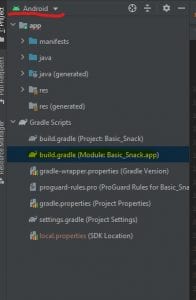
note: this project layout is supplied by the ide Android Studio
android {

    ...

    buildFeatures {
        viewBinding = true
    }
}
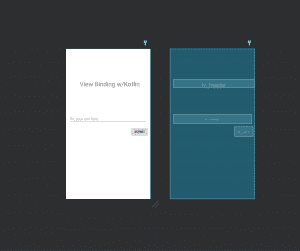
- Modify XML
<?xml version="1.0" encoding="utf-8"?>
<androidx.constraintlayout.widget.ConstraintLayout
    xmlns:android="http://schemas.android.com/apk/res/android"
    xmlns:app="http://schemas.android.com/apk/res-auto"
    xmlns:tools="http://schemas.android.com/tools"
    android:layout_width="match_parent"
    android:layout_height="match_parent"
    android:id="@+id/cl_layer"
    tools:context=".MainActivity"
    tools:ignore="">

    <androidx.appcompat.widget.AppCompatTextView
        android:layout_width="match_parent"
        android:layout_height="wrap_content"
        android:id="@+id/tv_header"
        android:text="View Binding w/Kotlin"
        android:textSize="30dp"
        android:textAlignment="center"
        android:layout_marginStart="15dp"
        android:layout_marginTop="150dp"
        app:layout_constraintEnd_toEndOf="parent"
        app:layout_constraintStart_toStartOf="parent"
        app:layout_constraintTop_toTopOf="parent"

        />
    <androidx.appcompat.widget.AppCompatEditText
        android:layout_width="match_parent"
        android:layout_height="wrap_content"
        android:id="@+id/et_message"
        android:layout_marginStart="16dp"
        android:layout_marginEnd="16dp"
        android:layout_marginTop="128dp"
        android:hint="Sir, your text here"
        app:layout_constraintEnd_toEndOf="@id/tv_header"
        app:layout_constraintStart_toStartOf="@id/tv_header"
        app:layout_constraintTop_toBottomOf="@id/tv_header" />

    <androidx.appcompat.widget.AppCompatButton
        android:layout_width="wrap_content"
        android:layout_height="wrap_content"
        android:id="@+id/btn_submit"
        android:layout_marginTop="16dp"
        android:text="Submit"
        app:layout_constraintEnd_toEndOf="@id/et_message"
        app:layout_constraintTop_toBottomOf="@id/et_message" />
</androidx.constraintlayout.widget.ConstraintLayout>
UI Design
- Modify Activity class
package com.programmingninja.viewbinding

import androidx.appcompat.app.AppCompatActivity
import android.os.Bundle
import com.google.android.material.snackbar.Snackbar
import com.programmingninja.viewbinding.databinding.ActivityMainBinding

class MainActivity : AppCompatActivity() {

    //create instance ActivityMainBinding
    private lateinit var amb : ActivityMainBinding

    override fun onCreate(savedInstanceState: Bundle?) {
        super.onCreate(savedInstanceState)

        //create the instance of ActivityMainBinding
        val binding = ActivityMainBinding.inflate(layoutInflater)

        //binding.root returns the root layout
        setContentView(binding.root)

        binding.btnSubmit.setOnClickListener {
            val msg = binding.etMessage.text.toString()
            if (!msg.isEmpty()) Snackbar.make(binding.clLayer, binding.etMessage.text.toString(), Snackbar.LENGTH_SHORT).show()
            else Snackbar.make(binding.clLayer, "Message is currently empty", Snackbar.LENGTH_SHORT).show()
        }
    }
}
- Run that CODE
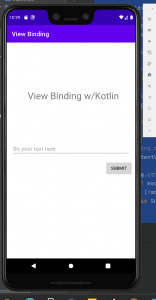
This new approach to finding views has an elegant interface, like Data Binding. Google designed it to avoid the performance issues of Data Binding and to provide compile-time safety.
See the completed code here: Fortress of Solitude
Using Snackbar
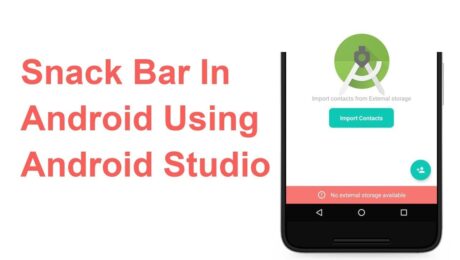
Android Snackbar is an interesting component introduced with the Material Design. Snackbars are very similar to the Toast messages with a few exceptions but the biggest is that provide action to interact with. Snackbar will be displayed at the bottom of the screen and can be swiped away in order to dismiss them.
Major Difference between Toast and Snackbar messages
- Toast message can be customized as well as displayed anywhere on the screen, however, Snackbar can be only shown at the bottom
- Toast messages cannot display action controllers but Snackbars optionally can display them
- Toast message remains on the screen until their time limit is mean but Snackbars can be swiped off before time expiring
note: similar to toast you have three different values for time limit
Implementing Snackbar
To begin this project is being created in Android Studio but any IDE that has the SDK for development can produce the same result. We begin by opening the ide and selecting “Create New Project”. Select “Empty Activity” and fill out the detail of the application and make sure with “Language” you select Java.
note: if you’re using Kotlin please review this tutorial
After the project is created open build.gradle and add the latest stable Material Design Dependency.
dependencies {
     implementation 'com.google.android.material:material:1.3.0'
}
By using the material dependency, you can also create components like Cardview, Recyclerview, and other things as well… If interested in learning to incorporate other material components review the below links.
Styling the App
<style name="AppTheme"
    parent="Theme.MaterialComponents.Light.NoActionBar">
    <item name="colorPrimary">@color/colorPrimary</item>
    <item name="colorPrimaryDark">@color/colorPrimary</item>
    <item name="colorAccent">@color/colorPrimary</item>
</style>
Method Creation
Open your MainActivity.java and we will begin by creating the following methods:
- Basic Snackbar
- As you can see the syntax is the default setup of the Snackbar. Please take note of the make function which accepts the following parameters. View, expected message to display and then the duration of the message to display.
public void basicSnack(View v){
    Snackbar sb = Snackbar.make(cl, "This is a basic Snackbar Display", Snackbar.LENGTH_SHORT);
    sb.show();
}
- Action Basic Snackbar
- Within this method, we reference a callback interaction using setAction(). This allows you to take a certain action when the user interacts with a Snackbar
public void basicActionSnack(View v) {
    Snackbar sb = Snackbar.make(cl, "Snackbar with Action Feature", Snackbar.LENGTH_SHORT);
    sb.setAction("Undo", new View.OnClickListener() {
        @Override
        public void onClick(View v) {
            Toast.makeText(getApplicationContext(), "Undo action", Toast.LENGTH_SHORT).show();
        }
    });
    sb.show();
}
- Custom Basic Snackbar
- By default, Snackbar text color is set to white with the default background #323232 but these features can be overwritten
public void basicCustomSnack( View v) {
    Snackbar sb = Snackbar.make(cl, "Custom Snackbar", Snackbar.LENGTH_SHORT);
    sb.setAction("Undo", new View.OnClickListener() {
        @Override
        public void onClick(View v) {
            Toast.makeText(getApplicationContext(), "Undoing Action", Toast.LENGTH_SHORT).show();
        }
    });

    sb.setActionTextColor(Color.CYAN);
    View sbv = sb.getView();
    TextView tv = sbv.findViewById(R.id.snackbar_text);
    tv.setTextColor(Color.GREEN);

    sb.show();
}
Let’s check the completed code
<!-- main activity xml-->
<?xml version="1.0" encoding="utf-8"?>
<androidx.coordinatorlayout.widget.CoordinatorLayout
    xmlns:android="http://schemas.android.com/apk/res/android"
    xmlns:app="http://schemas.android.com/apk/res-auto"
    android:layout_width="match_parent"
    android:layout_height="match_parent"
    android:id="@+id/app_Coordinator"
    android:fitsSystemWindows="true"
    android:orientation="vertical">

    <com.google.android.material.appbar.AppBarLayout
        android:layout_width="match_parent"
        android:layout_height="wrap_content"
        android:background="?attr/colorPrimary">

        <androidx.appcompat.widget.Toolbar
            android:layout_width="match_parent"
            android:layout_height="?attr/actionBarSize"
            android:id="@+id/toolbar"
            android:theme="@style/ToolbarStyle"
            app:title="@string/app_name"
            app:popupTheme="@style/ThemeOverlay.AppCompat.Light" />

    </com.google.android.material.appbar.AppBarLayout>
    <include layout="@layout/app_content" />

    <com.google.android.material.floatingactionbutton.FloatingActionButton
        android:layout_width="wrap_content"
        android:layout_height="wrap_content"
        android:layout_gravity="bottom|end"
        android:layout_margin="10dp"
        android:src="@drawable/ic_add_black"
        android:contentDescription="TODO" />
</androidx.coordinatorlayout.widget.CoordinatorLayout>
<!--container xml -->
<?xml version="1.0" encoding="utf-8"?>
<androidx.appcompat.widget.LinearLayoutCompat xmlns:android="http://schemas.android.com/apk/res/android"
    android:layout_width="match_parent"
    android:layout_height="wrap_content"
    xmlns:app="http://schemas.android.com/apk/res-auto"
    app:layout_behavior="@string/appbar_scrolling_view_behavior"
    android:padding="10dp"
    android:orientation="vertical">

    <androidx.appcompat.widget.AppCompatButton
        android:layout_width="match_parent"
        android:layout_height="wrap_content"
        android:text="@string/basic_snack"
        android:onClick="basicSnack" />

    <androidx.appcompat.widget.AppCompatButton
        android:layout_width="match_parent"
        android:layout_height="wrap_content"
        android:text="@string/basic_action_snack"
        android:onClick="basicActionSnack" />

    <androidx.appcompat.widget.AppCompatButton
        android:layout_width="match_parent"
        android:layout_height="wrap_content"
        android:text="@string/basic_custom_snack"
        android:onClick="basicCustomSnack" />

</androidx.appcompat.widget.LinearLayoutCompat>
// main activity
public class MainActivity extends AppCompatActivity {
    private CoordinatorLayout cl;
    private Toolbar tb;

    @Override
    protected void onCreate(Bundle savedInstanceState) {
        super.onCreate(savedInstanceState);
        setContentView(R.layout.activity_main);

        cl = findViewById(R.id.app_Coordinator);
        tb = findViewById(R.id.toolbar);
        setSupportActionBar(tb);
    }

    public void basicSnack(View v){
        Snackbar sb = Snackbar.make(cl, "This is a basic Snackbar Display", Snackbar.LENGTH_SHORT);
        sb.show();
    }

    public void basicActionSnack(View v) {
        Snackbar sb = Snackbar.make(cl, "Snackbar with Action Feature", Snackbar.LENGTH_SHORT);
        sb.setAction("Undo", new View.OnClickListener() {
            @Override
            public void onClick(View v) {
                Toast.makeText(getApplicationContext(), "Undo action", Toast.LENGTH_SHORT).show();
            }
        });

        sb.show();
    }

    public void basicCustomSnack( View v) {
        Snackbar sb = Snackbar.make(cl, "Custom Snackbar", Snackbar.LENGTH_SHORT);
        sb.setAction("Undo", new View.OnClickListener() {
            @Override
            public void onClick(View v) {
                Toast.makeText(getApplicationContext(), "Undoing Action", Toast.LENGTH_SHORT).show();
            }
        });

        sb.setActionTextColor(Color.CYAN);

        View sbv = sb.getView();
        TextView tv = sbv.findViewById(R.id.snackbar_text);
        tv.setTextColor(Color.GREEN);

        sb.show();
    }
}
To conclude
I hope you found this reading helpful and if you need further assistance don’t hesitate to contact me for additional assistance. If you are also interested in seeing other tutorials that are not present please hit my line and with
- Published in Android, Java, Programming Languages, Tutorial