
Android Rating: In-App Review API

Well Congratulations because you have coded, debugged and now published you app. The app itself is being used around the world by everyone but unfortunately that is not the end of the road for the application. Now that app is published the new objective is now collecting feedback and producing new updates which is accomplished by taking users feedback. An app rating and reviews are crucial factor to keep your app alive and have the downloads keep going. In the past the user would be prompted with a dialog with fancy buttons and upon ‘click’ the user is redirected to the Play Store. If the end user is anything like me, I find it annoying and complicated for the whole transition. Fear not Google understood and provided and API, which provide a rating widget in the app itself and the end user never has to leave the app itself.
Keep In Mind
- This API only functions with Android 5(API level 20+)
- The API is subject to quotas. Also the API decides how often the review widget should be shown to user.
- Note: More about quotas
- The flow process is controlled by the API. As the developer/designer you should not waste your time trying to alter the design.
- Note: More about Design Guidelines
- Furthermore the flow doesn’t notify us if the end user has completed the review or not
Integrating the API
Simple task here and can be accomplished with very little or minimal code. So enough talk and more implementing:
Since this API is apart of the Play Core API, so we need to add it to the library within the buid.gradle. In the code below you will notice that I am including the material library because I want to show a fallback if there is any error in-app review API.
//build.gradle
dependencies {

    implementation 'androidx.appcompat:appcompat:1.3.0'
    implementation 'com.google.android.material:material:1.5.0' //optional material library
    implementation 'com.google.android.play:core:1.10.3' //play core library
    implementation 'androidx.constraintlayout:constraintlayout:2.0.4'
    testImplementation 'junit:junit:4.13.2'
    androidTestImplementation 'androidx.test.ext:junit:1.1.3'
    androidTestImplementation 'androidx.test.espresso:espresso-core:3.4.0'
}
Now that has been accomplished, we need to create an instance of ReviewManager. This class provides necessary methods to start the review flow.
- New instance created, now a call the requestedReviewFlow() task returns ReviewInfo upon successful completion
- ReviewInfo object , needs to call launchReviewFlow() method which begins the review flow
- If requestReviewFlow fails, then we launch the usual Rate App dialog which then redirects the user to the Play Store.
- showRateApp() method starts the in-app review flow. The showRateAppFallbackDialog() method then acts as a fallback method if requestedReviewFlow throws an error.
package com.programmingninja.inappreview;

import androidx.appcompat.app.AppCompatActivity;
import android.os.Bundle;
import com.google.android.material.dialog.MaterialAlertDialogBuilder;
import com.google.android.play.core.review.ReviewInfo;
import com.google.android.play.core.review.ReviewManager;
import com.google.android.play.core.review.ReviewManagerFactory;
import com.google.android.play.core.tasks.Task;


public class MainActivity extends AppCompatActivity {

    private ReviewManager rm;

    @Override
    protected void onCreate(Bundle savedInstanceState) {
        super.onCreate(savedInstanceState);
        setContentView(R.layout.activity_main);

        doInit();
    }

    private void doInit() {
        rm = ReviewManagerFactory.create(this);
        findViewById(R.id.btn_rating).setOnClickListener(view -> showRateApp());
    }

    public void showRateApp() {
        Task<ReviewInfo> request = rm.requestReviewFlow();
        request.addOnCompleteListener(task -> {
           if (task.isSuccessful()) {
               //reviewinfo object
               ReviewInfo ri = task.getResult();

               Task<Void> flow = rm.launchReviewFlow(this, ri);
               flow.addOnCompleteListener(task1 -> {

               });
           } else {
               //
               showRateAppFallbackDialog();
           }
        });
    }

    private void showRateAppFallbackDialog() {
        new MaterialAlertDialogBuilder(this)
                .setTitle(R.string.app_title)
                .setMessage(R.string.app_user_message)
                .setPositiveButton(R.string.app_btn_positive, (dialog, which) -> {

                })
                .setNegativeButton(R.string.app_btn_negative, (dialog, which) -> {

                })
                .setNeutralButton(R.string.app_btn_neutral, (dialog, which) -> {

                }).show();
    }
}
Install, Test, Conclude
To test the this action, you should have the app approved and published within the PlayStore. Don’t worry the app doesn’t need to be available to the public.
- Published in Android, blog, Java, Programming Languages, Tutorial
View Binding w/Android

View Binding Purposes?
note: View binding is a feature that allows you to more easily write code that interacts with views. Once view binding is enabled in a module, it generates a binding class for each XML layout file present in that module. An instance of a binding class contains direct references to all views that have an ID in the corresponding layout.
View Binding is part of Android Jetpack. View Binding was introduced at the Android Talk at Google IO/19. Let’s learn more about this. In most cases, view binging replaces findViewById. Ultimately the findViewById, is used to declare the view variable for x times to use it. It makes a lot of boilerplate code inside the view Activity/Fragment. That is why View Binding came to provide a good way to access all views with onlu init one variable.
Key features
- ViewBinding is always null safe and type-safe, which supports both Java and Kotlin.
- ViewBinding is introduced in the Gradle version 3.6 and above (which comes with the Android Studio 4.0, only gradle 3.6).
- ViewBinding also helps to reduce the boilerplate code, hence reducing the code redundancy.
- While using the ViewBinding proper naming conventions are need to be followed because it creates the binding class internally using the name of the same layout file. Naming the layout file in the snake case is preferred. For Example, the ViewBinding creates activity_main.xml(snake case) file as ActivityMainBinding(pascal case), which contains all the property and instances of all the views containing in that layout.
- And also whatever IDs of all elements are created inside the layout XML file, the ViewBinding converts them to camel case. For example: android:id=”button_submit” -> buttonSubmit. Which is much useful in the code readability.
- Using ViewBinding the compilation of the code is a bit faster as compared to the traditional findViewById() method.
- The ActivityMainBinding class is generated in the following path under the project hierarchy this can be viewed.
Before View Binding
class MainActivity: AppCompatActivity() {
   val btnSignIn = findViewById<AppCompatButton>(R.id.btn_signIn)
   val txtUserStatus = findViewById<AppCompatTextView>(R.id.tv_userStatus)

   txtUserStatus?.Text = userProfile?.overview
   btnSignIn?.setOnClickListener {
      Snackbar sb = Snackbar.make(cl, "Successfully login attempt", Snackbar.LENGTH_SHORT);
      sb.show();
   }
}
After View Binding
class MainActivity: AppCompatActivity() {

   val binding = ActivityMainBinding.inflate(layoutInflater)

   binding.tv_UserStatus.text = userProfile?.overview
   binding.btnSignIn.setOnClickListener {
      Snackbar sb = Snackbar.make(cl, "Login Attempt Successful", Snackbar.LENGTH_SHORT);
      sb.show();
   }
}
Why View Binding
If you review the to above code clip you can notice a bit of the differences. For exmple you declare the binding variable from the generated view binding class. Now you can access all the view ids from the binding variable. The main advantages of using View Binding:
- Type Safety
- View binding provide a generated method od the same type as defined in the XML layout.
- Null Safety
- findViewById
Using View Binding
- enable viewBinding and this should take place with build.gradle
buildFeatures {
   viewBinding = true
}
- After enabling viewBinding perform the sync and let’s modify the XML layout
<?xml version="1.0" encoding="utf-8"?>
<androidx.constraintlayout.widget.ConstraintLayout
    xmlns:android="http://schemas.android.com/apk/res/android"
    xmlns:app="http://schemas.android.com/apk/res-auto"
    xmlns:tools="http://schemas.android.com/tools"
    android:layout_width="match_parent"
    android:layout_height="match_parent"
    android:id="@+id/cl_layer"
    tools:context=".MainActivity"
    tools:ignore="">

    <androidx.appcompat.widget.AppCompatTextView
        android:layout_width="match_parent"
        android:layout_height="wrap_content"
        android:id="@+id/tv_header"
        android:text="View Binding w/Kotlin"
        android:textSize="30dp"
        android:textAlignment="center"
        android:layout_marginStart="15dp"
        android:layout_marginTop="150dp"
        app:layout_constraintEnd_toEndOf="parent"
        app:layout_constraintStart_toStartOf="parent"
        app:layout_constraintTop_toTopOf="parent"

        />
    <androidx.appcompat.widget.AppCompatEditText
        android:layout_width="match_parent"
        android:layout_height="wrap_content"
        android:id="@+id/et_message"
        android:layout_marginStart="16dp"
        android:layout_marginEnd="16dp"
        android:layout_marginTop="128dp"
        android:hint="Sir, your text here"
        app:layout_constraintEnd_toEndOf="@id/tv_header"
        app:layout_constraintStart_toStartOf="@id/tv_header"
        app:layout_constraintTop_toBottomOf="@id/tv_header" />

    <androidx.appcompat.widget.AppCompatButton
        android:layout_width="wrap_content"
        android:layout_height="wrap_content"
        android:id="@+id/btn_submit"
        android:layout_marginTop="16dp"
        android:text="Submit"
        app:layout_constraintEnd_toEndOf="@id/et_message"
        app:layout_constraintTop_toBottomOf="@id/et_message" />
</androidx.constraintlayout.widget.ConstraintLayout>
PS: If your view id uses the under_score, it will be generated as a camelCase variable.
- The things that need to be focused on here are, creating the instance of the ViewBinding.
Kotlin
class MainActivity : AppCompatActivity() {

    //create instance ActivityMainBinding
    private lateinit var amb : ActivityMainBinding

    override fun onCreate(savedInstanceState: Bundle?) {
        super.onCreate(savedInstanceState)

        //create the instance of ActivityMainBinding
        val binding = ActivityMainBinding.inflate(layoutInflater)

        //binding.root returns the root layout
        setContentView(binding.root)

        binding.btnSubmit.setOnClickListener {
            val msg = binding.etMessage.text.toString()
            if (!msg.isEmpty()) Snackbar.make(binding.clLayer, binding.etMessage.text.toString(), Snackbar.LENGTH_SHORT).show()
            else Snackbar.make(binding.clLayer, "Message is currently empty", Snackbar.LENGTH_SHORT).show()
        }
    }
}
Java
public class MainActivity extends AppCompatActivity {

    //binding class to the xml
    //allows the system to automatically generate the system
    ActivityMainBinding amb;

    @Override
    protected void onCreate(Bundle savedInstanceState) {
        super.onCreate(savedInstanceState);

        //inflating the xml
        amb = ActivityMainBinding.inflate(getLayoutInflater());

        //retrieve the root layout
        View v = amb.getRoot();

        //ContentView for the layout
        setContentView(v);

        //calling the button and setting the click listener
        //call the button by id and set the click listener
        amb.btnSubmit.setOnClickListener(new View.OnClickListener() {
            @Override
            public void onClick(View v) {

                String msg = amb.etMessage.getText().toString();
                if (!msg.isEmpty()) Snackbar.make(amb.clLayer, amb.etMessage.getText().toString(), Snackbar.LENGTH_SHORT).show();
                else Snackbar.make(amb.clLayer, "Message is empty", Snackbar.LENGTH_SHORT).show();
            }
        });

    }
}
And that’s it. You are done setting up your view using View Binding.
if youre interested in seeing a tutorial on the topic check it out here:
- Published in Android, Java, Kotlin, Programming Languages
allowBackup: Android’s Attributes
If you’ve ever been sky diving, you know that it’s essential to prepare for redundancies in your jump. That way, if one shoot fails you have a spare as your backup. This philosophy isn’t left behind within android and this is accomplished using allowBackup, which helps automatically backing up application data.
allowBackup Purpose
According to the documentation, this feature allows Auto Backup for App automatically backs up a user’s data from apps that target and run on Android 6.0 (API level 23) or later. This can be accomplished in your android app so the user(s) can more quickly recover the data. This feature allows the user to delete the application using any method such as manually deleting/uninstalling the app to using the device “factory reset”, regardless of the method the app will retain the user data when they decide to reinstall. This feature is taken a step further across multiple devices which allows the user to get a new device and this information will be available for a new device.
How Much Data?
When implemented the user can store the data limited to 25MB, which persists across the lifetime of an app being installed on your device. Though that does not sound like a lot in reality it is more than enough to save preferences/settings.
Where Is It Stored?
This data is stored by uploading it to the user’s Google Drive, where it is protected but the user’s account credentials. Don’t worry this data is stored in a private folder on the user’s drive and doesn’t count towards the user’s personal Drive quota.
Note: Only the most recent backup is stored in the drive.
What is Being Backed Up
The default function of this feature includes files in most directories that are assigned within your app by the system:
- shared preferences
getFilesDir()orgetDir(String, int)- Files stored in the app internal storage
getDatabasePath(String)- Files within this directory
getExternalFilesDir()- Files on external storage within this directory
So in short you can configure the application to include as well as exclude any files.
Customizing Your Backup
Within the android manifest, ensure that you add android:fullBackupContent within your application block. This points to an XML file that should contain all the rules for the full backup for the Auto Backup. Follow these steps and you can accomplish the task:
- within the res directory create a directory called xml
- now create an XML file called auto_backup_rules.xml
- Use the syntax include/exclude
- if you use both
include/excludetheincludetag supersede - The path reference within the
includeandexcluderefers to the resource location- Example:
<include domain="database" path="test_db.db"
- Example:
- if you use both
- The backup file should be listed in Android Manifest
- Example:
<application android:fullBackupContent="@xml/auto_backup_rules ... >
- Example:
Triggering the Backup
Backups are triggered automatically when any of the following conditions are met:
- backup must be enabled by the user. From Android 9 this setting is within Setting> System > Backup
- 24 hours has elapsed since the last backup
- The device is not in use
- The device is connected to a stable Wi-Fi network
Should Backups Cause Problem
Android backups rely on the Android Debug Bridge (ADB) command to perform backup and restore. ADB, however, has been a soft target for hackers and is still not trusted by respected developers. The idea that someone can inject malicious code into your backup data is unsettling, to say the least. This generally isn’t a problem for end-users as it requires debugging to be enabled on the device, but since a lot of Android users are fond of exploring and rooting their devices, it can become a serious problem.
Once backed up, all application data can be read by the user. adb restore allows the creation of application data from a source specified by the user. Following a restore, applications should not assume that the data, file permissions, and directory permissions were created by the application itself.
Therefore, applications that handle and store sensitive information such as card details, passwords, etc., should have this setting explicitly set to false — by default, it is set to exclude — to prevent such risks, or you can also customize what needs to be backed up.
If there is anything that is missing or being overlooked please do not hesitate to comment so we can all learn.
- Published in Android, Java, Kotlin, Programming Languages
Using View Binding w/Android
View Binding is one of the best features which provides the views to bind with the activity which is ongoing. Replacing the findViewById() method, hence reducing the boilerplate code, generated the instances of the views of the current layout. And most important feature about the View Binding is it’s always null safe. In this article detailed it’s been provided in detail approach for the View Binding.
if interested in knowing more about View Binding check out my previous blog
- Implementation
Of couse open your ide of choice, for myself I am using Android Studio, and create a project with and empty activity. if you are unfamiliar with this process or is missing this activity template please follow this link.
- Enable ViewBinding
After the ide fininish initilizing everything we are going to open the module build.gradle
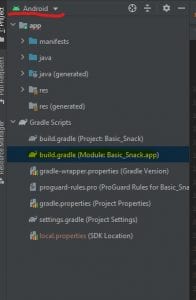
note: this project layout is supplied by the ide Android Studio
android {

    ...

    buildFeatures {
        viewBinding = true
    }
}
- Modify XML
<?xml version="1.0" encoding="utf-8"?>
<androidx.constraintlayout.widget.ConstraintLayout
    xmlns:android="http://schemas.android.com/apk/res/android"
    xmlns:app="http://schemas.android.com/apk/res-auto"
    xmlns:tools="http://schemas.android.com/tools"
    android:layout_width="match_parent"
    android:layout_height="match_parent"
    android:id="@+id/cl_layer"
    tools:context=".MainActivity"
    tools:ignore="">

    <androidx.appcompat.widget.AppCompatTextView
        android:layout_width="match_parent"
        android:layout_height="wrap_content"
        android:id="@+id/tv_header"
        android:text="View Binding w/Kotlin"
        android:textSize="30dp"
        android:textAlignment="center"
        android:layout_marginStart="15dp"
        android:layout_marginTop="150dp"
        app:layout_constraintEnd_toEndOf="parent"
        app:layout_constraintStart_toStartOf="parent"
        app:layout_constraintTop_toTopOf="parent"

        />
    <androidx.appcompat.widget.AppCompatEditText
        android:layout_width="match_parent"
        android:layout_height="wrap_content"
        android:id="@+id/et_message"
        android:layout_marginStart="16dp"
        android:layout_marginEnd="16dp"
        android:layout_marginTop="128dp"
        android:hint="Sir, your text here"
        app:layout_constraintEnd_toEndOf="@id/tv_header"
        app:layout_constraintStart_toStartOf="@id/tv_header"
        app:layout_constraintTop_toBottomOf="@id/tv_header" />

    <androidx.appcompat.widget.AppCompatButton
        android:layout_width="wrap_content"
        android:layout_height="wrap_content"
        android:id="@+id/btn_submit"
        android:layout_marginTop="16dp"
        android:text="Submit"
        app:layout_constraintEnd_toEndOf="@id/et_message"
        app:layout_constraintTop_toBottomOf="@id/et_message" />
</androidx.constraintlayout.widget.ConstraintLayout>
UI Design
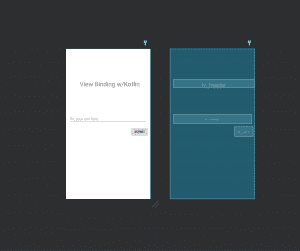
- Modify Activity class
package com.programmingninja.viewbinding

import androidx.appcompat.app.AppCompatActivity
import android.os.Bundle
import com.google.android.material.snackbar.Snackbar
import com.programmingninja.viewbinding.databinding.ActivityMainBinding

class MainActivity : AppCompatActivity() {

    //create instance ActivityMainBinding
    private lateinit var amb : ActivityMainBinding

    override fun onCreate(savedInstanceState: Bundle?) {
        super.onCreate(savedInstanceState)

        //create the instance of ActivityMainBinding
        val binding = ActivityMainBinding.inflate(layoutInflater)

        //binding.root returns the root layout
        setContentView(binding.root)

        binding.btnSubmit.setOnClickListener {
            val msg = binding.etMessage.text.toString()
            if (!msg.isEmpty()) Snackbar.make(binding.clLayer, binding.etMessage.text.toString(), Snackbar.LENGTH_SHORT).show()
            else Snackbar.make(binding.clLayer, "Message is currently empty", Snackbar.LENGTH_SHORT).show()
        }
    }
}
- Run that CODE
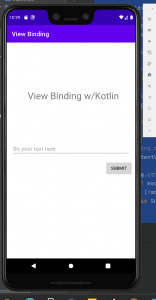
This new approach to finding views has an elegant interface, like Data Binding. Google designed it to avoid the performance issues of Data Binding and to provide compile-time safety.
See the completed code here: Fortress of Solitude
Did someone say Navigation to the rescue: Android Jetpack

If you been around the block a few times with Android development you probably already know that there is an issue with Navigation. If you don’t trust me you will soon find out but don’t worry I am going to let you in on a little hint to overcome many of the challenges that arise doing the development process. Note unless the app you are developing isn’t complex avoid this altogether but let get serious if you are developing for the public it is sure to become more convoluted as you go. Complexity can range from any of the following: Fragment transactions, deep linking to different parts within the app, passing values/arguments securely and safely, and much more. This is where our friend JetPack’s nav component steps in because its purpose brings solutions to the above complexity. From this article, you can expect how to solve those issues.
Terms and Definition to keep
- NavHost
- a container that has any or all the information it may need to handle the navigation actions
- NavController
- This component performs the navigation between destinations,
- NavigationalUI
- This component simply connects the navigation with some material component (for example the BottomNavigationView and DrawerLayout)
Fragment Transactions
With the nav component, there’s no need to manually handle fragment transactions (praise him), and it takes care of everything internally. To successfully go from FragmentA to FragmentB and now all you need to do is call the corresponding navigation action at runtime.
navController.navigate(R.id.actionId)
//or something like this
navController.navigate(R.id.destinationId)
The Back & Up Navigation
With the nav component and using the single activity model, the Activity’s role becomes more of an entry point to the app that delegates the handling of its content rather than being its owner. A NavHost, it is hooked up to the navigation graph which represents the single source of truth, and this where all the destinations, actions, arguments and deep links are defined
When using fragments as destinations, you can use the NavHostFragment class as a NavHost. Let’s take a look at how the activity layout may look like it
<FrameLayout>
    <fragment
         android:id="@+id/mainNavHostFragment"
         android:name="androidx.navigation.fragment.NavHostFragment"
         android:layout_width="match_parent"
         android:layout_height="match_parent"
         app:defaultNavHost="true"
         app:navGraph="@navigation/main_navigation_grah"/>
</FrameLayout
Since the navigation graph is the single source of truth for all navigation within the app, the navigation component does the right thing when the user navigates back or up. Not only does it handles this, but it correctly takes care of things such as the back stack, transactions, pop behavior, and transaction animations.
Passing Data Securely & Safely
If you have ever pass data between Fragments can be tedious as well as error-prone and this is not including the things that can go wrong or at least get confusing while refactoring the code. Ideally, we like to pass and retrieve arguments in an easy manner without having to worry about their keys, and read them safely.
The navigation component brings a solution to this using the Gradle plugin [androidx.navigation.safeargs]. It basically generates some boilerplate code to make any developer’s life easier. As you will see with the example below when a user navigates from FragmentA to FragmentB while passing a mandatory argument and an optional argument. What classes are generated:
-
FragmentADirections.ActionFragmentAToFragmentB
- Inner class with a constructor that takes in the mandatory arguments and setters for the optional arguments
-
FragmentADirections
- Has a method [actionFragmentAToFragmentB] that takes in the mandatory arguments and returns an instance of
FragmentADirections.ActionFragmentAToFragmentB
- Has a method [actionFragmentAToFragmentB] that takes in the mandatory arguments and returns an instance of
-
FragmentBArgs
- Has getters for the different arguments
So to begin, within the navigation graph, the destinations are defined along with the action (this transition is from FragmentA to FragmentB) and the arguments
<fragment
	android:id="@+id/fragmentA"
	android:name="com.test.FragmentA"
	android:label="Fragment A">
	<action
		android:id="@+id/action_FragmentA_to_FragmentB"
		app:destination="@+id/fragmentB"/>

</fragment>

<fragment
	android:id="@+id/fragmentB"
	android:name="com.test.FragmentB"
	android:label="Fragment B">

	<!--Mandatory Argument-->
	<argument
		android:name="id"
		app:argType="integer" <!--Argument Type-->
		/>

	<!--Optional Argument-->
	<argument
		android:name="data"
		android:defaultValue=""
		app:argType="string" <!--Argument Type-->
		/>
</fragment>
In addition, within FragmentA, performs the navigation while passing the arguments.
//creating  a NavDirection instance for the mandatory argument
val directions = FragmentADirections.actionFragmentAToFragementB(10)

// if there is n optional argument you can pass it
directions.setData("")

//Navigate to the new FragmentB
navController.navigate(directions)
Now reading
val id: Int = FragmentBArgs.fromBundle(arguments).id
val data: String = FragmentBArgs.fromBundle(arguments).data
Deep Links
Deep linking inside any application can get complicated as the app get more complex. Issues such as how to structure these deep links, how to pass the required information, and how to build the right back stack arise. In the nav component, deep linking is a first-class citizen, and both types are supported: Explicit () and Implicit ().
-
Explicit
- Used for notifications, app widgets, actions, and slices. Consider these used for pending intent based.
//prepare the arguments to pass to any notification expectation
val arg = Bundle().apply {
    putString("StringKey", "a string value")
    putInt("IntKey", 0)
}

//preparing intent, while selecting the graph & destination
val pendingIndent = NavDeepLinkBuilder(context)
    .setGraph(R.navigation.main_navigation_graph)
    .setDestination(R.id.destinationFragment)
    .setArguments(arg)
    .createPendingIntent()

//prepaing notification
val notification = NotificationCompat.Builder(context, NavigationApplication.NOTIFICATION_CHANNEL_ID)
    .setSmallIcon(R.drawable.notification_icon)
    .setContentTitle("Explicit Deep Link")
    .setContentText("Click on the following notification")
    .setContentIntent(pendingIndent)
    .setAutoCancel(true)
    .build()

//Display notification
NotificationManagerCompat.from(context).notify(10, notification)
-
Implicit
- Used for handling web URLs and custom scheme URIs.
<fragment
    android:id="@+id/destinationFragment"
    android:name="com.example.destinationFragment"
    android:label="@string/title_destination_fragment">
    <action ... />
    <deepLink
        android:id="@+id/custom_scheme_uri_deeplink"
        app:uri="android-app://path/subpath/{data}" />
    <deepLink
        android:id="@+id/web_url_deeplink"
        app:uri="www.husaynhakeem.com/path/subpath" />
</fragment>
Now we need to review the manifest and tweak it a bit. Within the activity tag of the Activity that contains the above destination fragment, the line below needs to be added.
<activity android:name="com.example.Activity">
    <nav-graph android:value="@navigation/main_navigation_graph" />
</activity>
Testing Navigation
The navigation component comes with a dependency just for testing android.arch.navigation:navigation-testing:$nav_version. But unfortunately, there seems to be very little (to say the least) documentation around it online, I wasn’t personally able to find any projects (not even the google sample apps) that use it, and a GoogleIO talk from earlier this year briefly brings up the topic but doesn’t go into any of its details. But the promise is that testing will be developed further in future releases, allowing developers to test their app’s destinations in isolation without worrying about potential issues such as fragment transactions.
All in All
There’s no doubt that the navigation component brings a lot to the table, it has several other great features I didn’t mention in this article such as nesting graphs, methods curated for Kotlin usage -based on extension functions-, and an easy to use navigation graph editor. But despite this, the navigation component seems to leave some open questions unanswered, especially one that’s bugging me: Passing data back to a previous destination (similar to startActivityForResult and onActivityResult).
The navigation component is currently still in Alpha, it’ll be interesting to see how it evolves, and I also look forward to playing with its testing component when there are more resources around it. But for the time being, I think it would be fun to test its limits in a real-world application.
- Published in Android, Java, Kotlin, Programming Languages
Show/Hide On-Screen Keyboard

Android R is also known as Android 11 release brought a few new APIs to the table and one of them is the new WindowInset which expands the control that we as developers have over the window insets. This includes the navigation and status bar as well as an on-screen keyboard.
This new release provides a direct way to check these state changes that now toggle and listen for changes in the visibility of the window insets. These options now allow the developer to control and react to the animation when the visibility state changes (but this is not going to be covered within this article).
Getting Started
When writing this post, Android 11 been running on more than 1% of devices, but thanks to the magic of AndroidX the APIs are also usable on several other devices with earlier versions. This post focus on using AndroidX implementation but you will find the equivalent APIs to use in documentation.
implementation "androidx.core:core-ktx:1.5.0-alpha05
Now we are going to insert the following code into the build.gradle file, under all the dependencies. (Note: Any version of 1.5.0 or later will work and please check for the latest version. Apply accordingly)
Show/Hide Keyboard
To start we need to access the WindowInsetsController. When the view is passed it doesn’t have to be an EditText directly but can be any view in the same hierarchy as the focused editText.
//note: ci is my shorthand for controllerInsets
val ci = ViewCompat.getWindowInsetsController(view)
Now that we have initialized the view let show the keyboard on the screen:
ci?.show(WindowInsetsCompat.Type.ime())
Let’s hide the keyboard now:
ci?.hide(WindowInsetsCompat.Type.ime())
Keyboard Visibility
If you have ever tried to check the keyboard visibility in the past then you have probably messed with the global layout listeners because there was no other way. Well, hold on to your trousers because finally there is a proper way to do it.
//start by accessing the root window insets
val insets = ViewCompat.getRootWindowInsets(view)

//Now check the visibility of the IME window
insets?.isVisible(WindowInsetsCompat.Type.ime())
Catching Keyboard Changes
To catch the changes with the keyboard visibility, then we have to let the device know that the app is now responsible for the content view of the insets.
//add the following now
WindowCompat.setDecorFitsSystemWindows(window, false)
This will force the view to be drawn behind the on-screen keyboard as well as other system UI, however, now that we are listening for the keyboard changes we can move any other conflicting views accordingly.
Conclusion
Controlling the on-screen keyboard is common in Android development, so the APIs are long overdue. Understand that this now provides us (developers) a more reliable and efficient way to control any type of window insets going forward. Also, note that AndroidX allows us to use these APIs with older Android versions as well.
- Published in Android, Java, Kotlin, Programming Languages
Android w/ Fragments
A fragment is an Android component that holds part of the behavior and/or UI of an activity. As the name would suggest, fragments are not independent entities, but are tied to a single activity. In many ways, they have functionality similar to activities.
In the same way that you don’t actually need an army of little helpers to do your bidding, you don’t have to use fragments. However, if you use them well, they can provide:
- Modularity – Diving complex activity code across fragments for better maintenance
- Adaptability – representing sections of a UI within the different fragments while utilizing different layouts that relys on the screen orientation and size
- Reusability – placing behavior or UI parts within the fragments that multiple activities can share
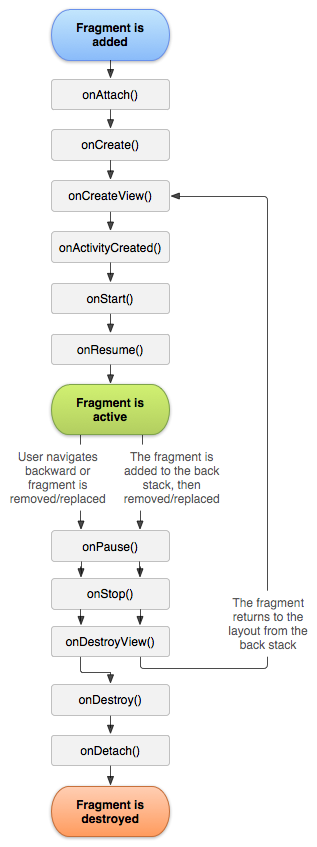
Fragment Lifecycle of Android
As you already know like activity, a fragment has a lifecycle with events that occur when the status changes within the framents. For example, when an event fires becasue a fragment becomes visible and active, or is not used or removed. Just as in a regular activity you are able to add code and behavior to the callbacks for the events.
Below you will see the fragment lifescycle diagram:
Understanding the lifecycle
- onAttach : the fragment attaches to its host activity
- onCreate : When a new fragment initializes, which always happens after it attaches to the hosts.
- onCreateView : creates its portion of the view hierarchy, which then added to the activity’s hierarchy of view
- onActivityCreated : fragment’s activity has finished on its own onCreate
- onStart : fragment becomes visible and starts after its activity starts
- onResume : fragment is visible and interactable that resumes only after its activity resumes and often resumes immediately after the activity does.
- onPause : user may not interact
- onStop : this is fired when the fragment is no longer visible; the fragment will get change with another fragment or it gets removed from actvity or fragment’s is stopped
- onDestroyView : this is fired when the view and other resources created within the onCreateView() are removed from the activity’s view hierarchy and destroyed.
- onDestroy : fired when the fragment does the final clean up.
- onDetach : fires when the fragment is detached from the activity host
If you want to learn more details regarding please read “Droid Fragments Life”.This is all about how the fragment come up within the activity and goes out. Cool!!
- Published in Android, Java, Kotlin, Programming Languages
Java Or Kotlin Language: Deciding Which Option to Use for Android Development
If my math is not wrong Java has been around for over 20+ years now and has no intention of going away. It holds a supreme position in the list of most popular programming languages following the C and C++ =, setting the highest usability record with millions of developers and systems.
Random Fact:
James Gosling, Mike Sheridan, and Patrick Naughton initiated the Java language back in 1991. Java has been the primary language for Android app development along with a few of its companions: Scala, Groovy and stepping up is Kotlin.
Kotlin Background
Let first you will need to understand what exactly is Kotlin so it is considered as statically typed programming language that runs on JVM(Java Virtual Machine) and JavaScript. It is developed by JetBrains and open-source community. The ‘Kotlin’ name came from Kotlin Island located near Saint Petersburg. It is supported by leading IDEs and compatible with Java 6 or Java 8. Kotlin is described as a general-purpose language and introduces functional features to support Java interoperability. The Kotlin project was born out of the aspiration for heightened productivity. The goal was to improve the coding experience in a way that was both practical and effective.
A central focus of Kotlin is to enable mixed-language projects. Kotlin also introduces improved syntax, as well as concise expressions and abstractions. Using Kotlin with Java reduces excessive boilerplate code, which is a huge win for Android developers. Kotlin came when Android development needed a more modern language to add to the qualities of java and aid in mobile development. This allows developers to not only easily update old Java apps to Kotlin, but also carry on their old work in Java to Kotlin.
Here’s a brief example Kotlin language
package hello
fun main() {
  println("Hello World")
}
It’s that simple! Kotlin uses developer-friendly coding structures and norms that are easy-to-understand and use. When considering this example from the develops’ perspective, you will be able to understand why Kotlin is loved by developers around the world. It is concise, effective, and faster compared to Java.
Is Java Dead?
Based on the group that I program with it appears that Java is currently in the area with us developers. Java is a reputable programming language with vast open-source tools and libraries to help developers. With that said, no language is without fault and even Java is subject to complications that can make a developer’s job tedious. If anything the objective for Kotlin is to supposedly introduce solutions to the common programming headaches and improve the Java ecosystem as a whole.
Strict Trial And Error
Kotlin has some milage under itself and has become a more stable and congruous development option especially within the Android Studio IDE. Some developers seem to believe that Kotlin will oust Java for Android development in future years. Other reviewers seem to believe Kotlin and Java should be coexisting without one outweighing the other.
This is a quality Java is not known for; however, readability should always take priority over concision. Yes, the succinct nature of Kotlin simplifies a developer’s job and mitigates the risk for error, but Kotlin doesn’t practice concision for concision’s sake. So let’s take the example below and compare the difference in the languages presents.
public class MathLife {
   public static double calculate () throws Exception {
      switch(op) {
         case "add":
            return a + b;
         case "subtract":
            return a - b;
         case "multiply":
            return a * b;
         case "divide":
            return a / b;
         default:
            throw new Exception();
      }
   }
}
Above is a simple calculator function written in Java. For comparison, here is the same calculator in Kotlin:
fun calculate(a: Double, op: String, b: Double): Double {
   when (op) {
      "add" -> return a + b
      "subtract" -> return a - b
      "multiply" -> return a * b
      "divide" -> return a / b
      else -> throw Exception()
   }
}
It may not seem like much, but the Kotlin version of this calculator is written in half the lines of code it took to program the function in Java. Brevity is a crucial factor in productivity. Writing large projects becomes easier when a developer is given more power for every line of code. A key observation here is Kotlin does not overlook comprehension for the sake of brevity. The syntax is concise, readable and still substantial.
The Winner: Java or Kotlin
In all fairness, chances are that you have been taught, learn and embraced Java. Switching to Kotlin at a time can be a bit of shock, so it is important to do this transition slowly to make sure you understand. having said that, Kotlin is the new official language and owing to its modern nature, it will become widely adopted in the future, so learning it and starting development with it right now would be a good idea. Understand java will continue to be a popular language for several years to come and isn’t likely to be entirely replaced. So take your time and make the switch gently.
At the end of the day, it’s all about what you feel comfortable with. As stated previously to be a true blood Androidian, you will need to have a working knowledge of the language Java. But if you already do have that then the Kotlin language of the future, so you might as well spend some time getting accustomed to it.
- Published in Android, Java, Kotlin, Language, Programming Languages
Integrating Google’s reCAPTCHA w/Android

Introduction
Google’s reCAPTCHA API protects your website/app from malicious traffic. You might have seen the reCAPTCHA integrated on web pages. You can integrate the same in your Android apps too using SafeNet API. The service is free to use and it will show a captcha to be solved if the engine suspects user interaction to be a bot instead of a human.
Within this post, I will explain and build a simple button click application that will integrate captcha to avoid bots from submitting forms on there own. But understand that this method is not only limited to form usage but a user can integrate any this module into any app
How it works
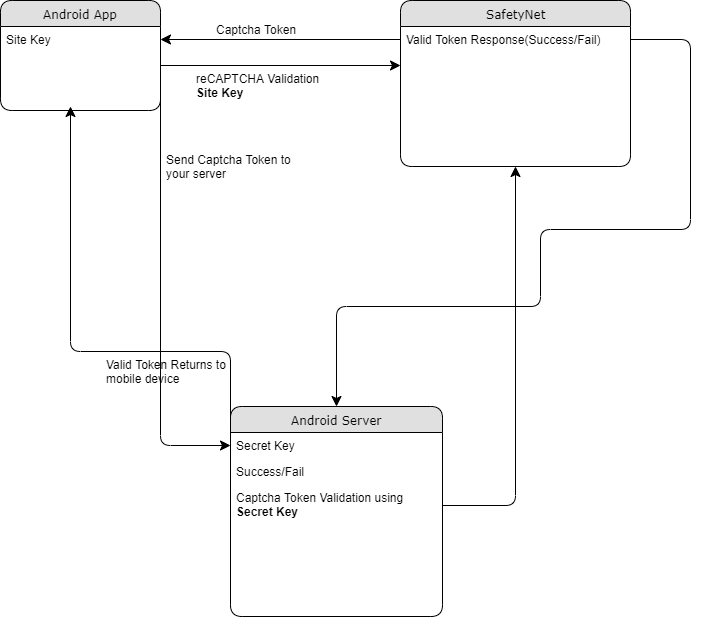
The following point will explain the simple flow of reCAPTCHA in Android with SafetyNet API.
- First, a user needs to obtain the SafetyNet key pair by registering your app. After completing this a Site & Secret Key.
- The Site Key will be integrated into an Android app and it can be public. Secret Key should be kept on your server and it shouldn’t be exposed.
- When reCAPTCHA is invoked, it will show the Captcha challenge to a user it necessary. In this step, it communicates with the captcha server and returns “User Response Token” using Site Key.
Registering your App w/SafetyNet
To begin before diving into the application creation we need to get the keys that will be validated against.
Fist go to the site following site and sign up if you do not already have an account
- https://www.google.com/recaptcha/intro/v3.html
- After accessing your account create
- Register a new account
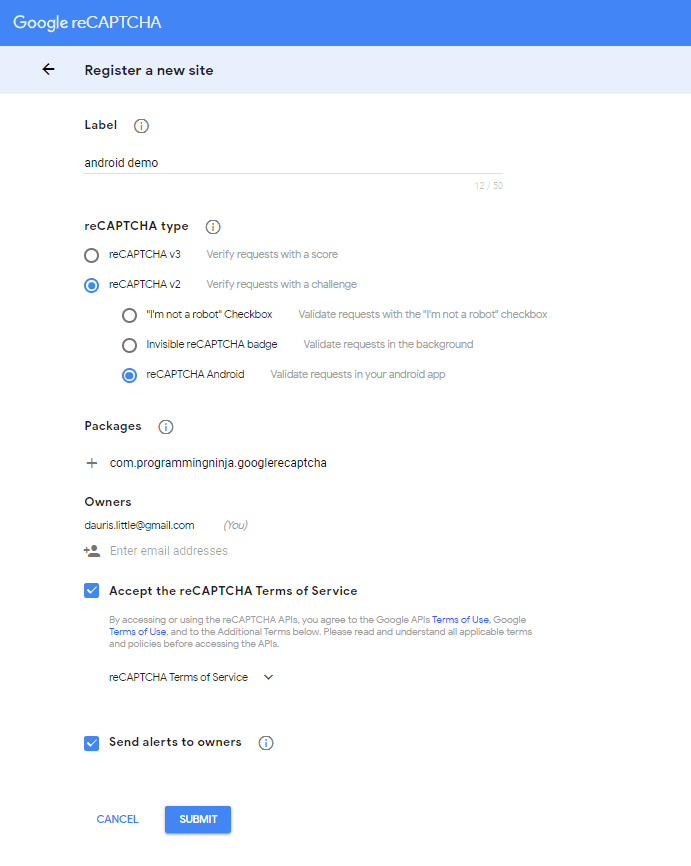
- Now enter your label, reCAPTCHA type, domains and then accept “Terms of Service”
NOTE: Regarding the label the title be anything that identifies the api key to yourself
NOTE: Regarding the selecting reCAPTCHA if working with android select reCAPTCHA v2 then reCAPTCHA Android
NOTE: Regarding populating the domain should be your Package Name in Package Names Section
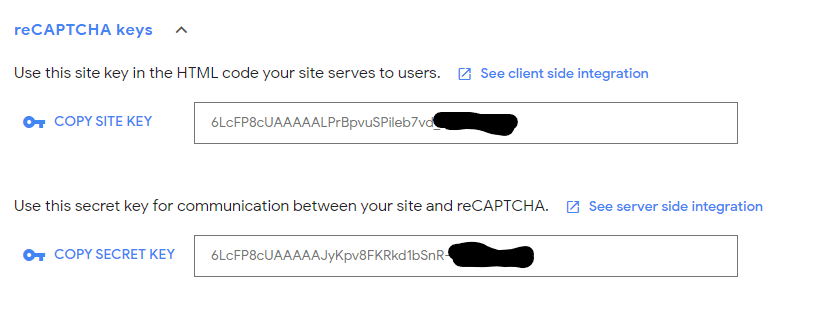
Then, you will get the site key and secret key from SafetyNet API Server and it as well as shows client and server-side integration code snippets. The following figures show the same.
Step 1 – Create New Project w/Android Studio
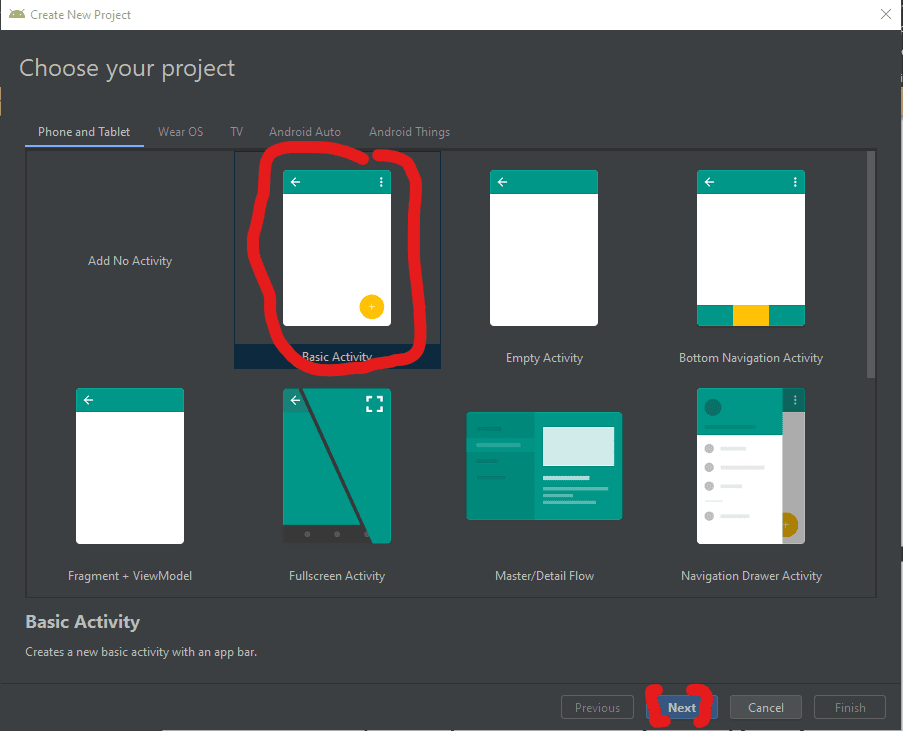
Now lets begin with the fun stuff and to begin you will begin by open Android Studio and then “Create New Project”
- Begin by Start a new Android Studio Project èselect Basic Activity from templates.
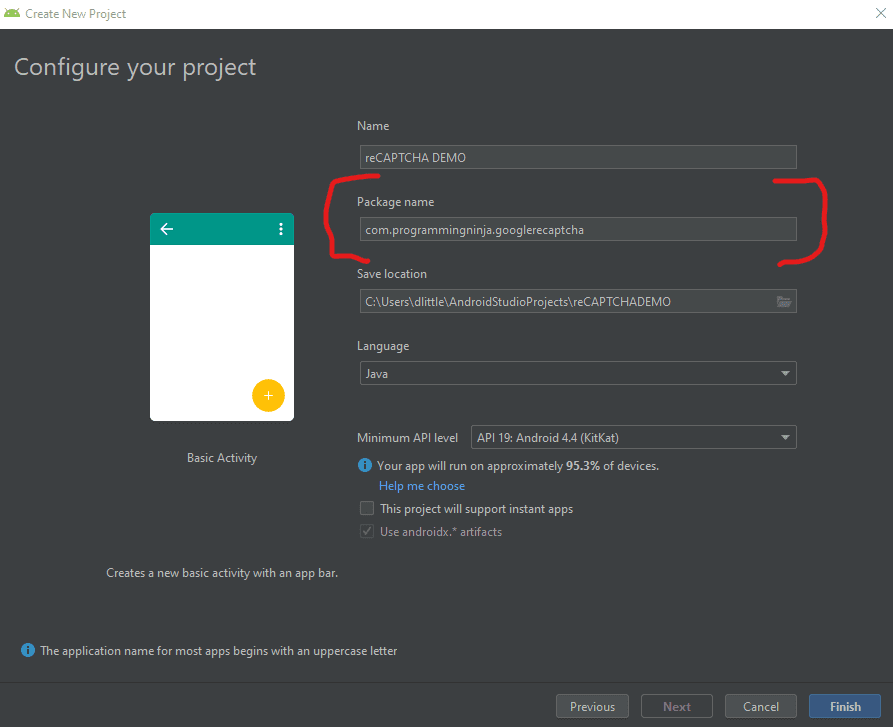
NOTE: While creating, use the package name you have registered on reCAPTCHA dashboard.
Step 2 – Setting up the library & AndroidMainfest for the project
Add SafeNet and the Volley dependency to your build.gradle and rebuild the project. Here, I used the following dependency. You can change as per your Android SDK.
NOTE: Volley is used to send HTTP call to our server to validate the captcha token on the server side.
build.gradle
dependencies {
    implementation fileTree(dir: 'libs', include: ['*.jar'])
    implementation 'androidx.appcompat:appcompat:1.1.0'
    implementation 'androidx.constraintlayout:constraintlayout:1.1.3'
    implementation 'com.google.android.material:material:1.0.0'
    testImplementation 'junit:junit:4.12'
    androidTestImplementation 'androidx.test.ext:junit:1.1.1'
    androidTestImplementation 'androidx.test.espresso:espresso-core:3.2.0'

    //dependency for recaptcha (safetynet)
    implementation 'com.google.android.gms:play-services-safetynet:17.0.0'

    //dependency for fast networking for networking
    implementation 'com.android.volley:volley:1.1.0'
}
Now we need to add the app manifest file with the following permission(s). SafetyNet library is used to create the captcha validation in android. Volley library is an HTTP Networkinf library used here for validating captcha response.
AndroidManifest.xml
<uses-permission android:name="android.permission.INTERNET"/>
Step 3 – Implementation of SafetyNet API
If you are still with me then let’s dive into the Java part of the project. We will first ensure that we have all the modules that will be used in the application
Required modules
import android.os.Bundle;
import android.util.Log;
import android.view.View;
import android.widget.Button;
import android.widget.TextView;

import androidx.appcompat.app.AppCompatActivity;
import androidx.annotation.NonNull;

//volley
import com.android.volley.DefaultRetryPolicy;
import com.android.volley.RequestQueue;
import com.android.volley.Request;
import com.android.volley.Response;
import com.android.volley.VolleyError;
import com.android.volley.toolbox.StringRequest;
import com.android.volley.toolbox.Volley;


import com.google.android.gms.common.api.ApiException;
import com.google.android.gms.common.api.CommonStatusCodes;
import com.google.android.gms.safetynet.SafetyNet;
import com.google.android.gms.safetynet.SafetyNetApi;
import com.google.android.gms.tasks.OnFailureListener;
import com.google.android.gms.tasks.OnSuccessListener;

import org.json.JSONObject;

import java.util.HashMap;
import java.util.Map;

import android.view.Menu;
import android.view.MenuItem;
Step 3 – Implementation of SafetyNet API (Continue)
If you are still with me then let’s dive into the Java part of the project. We will first ensure that we have all the modules that will be used in the application
- Replace “Site_Key” and “Site_Secret_Key” with your appropriate “Site Key” and “Secret Key” get from SafetyNet API while registering app.
- The API will check the Server and it has a separate callbacks from success and failure.
- At Success, we will get Captcha Response Token which will be used to validate the user interaction is made by a bot or real human.
- We will discuss how to validate the token with SafetyNet API Server in next step.
NOTE: the call on the created click event
protected void onCreate(Bundle savedInstanceState) {
        super.onCreate(savedInstanceState);
        setContentView(R.layout.activity_main);

        btn = findViewById(R.id.reCaptcha);
        txtV = findViewById(R.id.verifyText);
        btn.setOnClickListener(this);

        requestQueue = Volley.newRequestQueue(getApplicationContext());
    }

    public void onClick(View view){
        SafetyNet.getClient(this).verifyWithRecaptcha(Site_Key)
                .addOnSuccessListener(this, new OnSuccessListener <SafetyNetApi.RecaptchaTokenResponse>(){
                    @Override
                    public void onSuccess(SafetyNetApi.RecaptchaTokenResponse response){
                        if (!response.getTokenResult().isEmpty()){
                            handleCaptchaResult(response.getTokenResult());

                        }
                    }
        })
                .addOnFailureListener(this, new OnFailureListener() {
                    @Override
                    public void onFailure(@NonNull Exception e) {
                        if (e instanceof  ApiException){
                            ApiException apiException = (ApiException)e;
                            Log.d(TAG, "Error Message: " + CommonStatusCodes.getStatusCodeString(apiException.getStatusCode()));
                        } else {
                            Log.d(TAG, "Unknown error type or error" + e.getMessage());
                        }
                    }
                });
    }
Step 4 – Captcha Response Token Validation
- We have to verify the token getting from the server using the secret key.
- It can achieve by using the following.
-
- API Link – https://www.google.com/recaptcha/api/siteverify
- Method – POST
- Params – secret, response (We have to pass the “SECRET_KEY” and “TOKEN” respectively)
NOTE: Volley has
- RequestQueue to maintain the server calls in queue.
- RetryPolicy to retry the server call if it is fail with TimeOut and Retry Count. We can change those values.
- StringRequest is used for getting Response as JSON String.
- Method.POST denotes the call as POST method.
- Params are passed to server using Map, HashMap.
The SafetyNet API provides the response respective to the parameters passed and the success is Boolean Datatype.
void handleCaptchaResult(final String responseToken){
        String url = "https://www.google.com/recaptcha/api/siteverify"; //consider using global variable here
        StringRequest request = new StringRequest(Request.Method.POST, url, new Response.Listener<String>() {
            @Override
            public void onResponse(String response) {
                try {
                    JSONObject jsonObject = new JSONObject(response);
                    if (jsonObject.getBoolean("success")) {
                        txtV.setTextSize(35);
                        txtV.setText("Congratulations! You're not a robot anymore");
                    }
                } catch (Exception ex) {
                    Log.d(TAG, "Error message: " + ex.getMessage());
                }
            }
        },
                new Response.ErrorListener() {
                    @Override
                    public void onErrorResponse(VolleyError error) {
                        Log.d(TAG, "Error message: " + error.getMessage());
                    }
                })
        {
            @Override
            protected Map<String,String> getParams(){
                Map<String,String> params = new HashMap<>();
                params.put("secret", Site_Secret_Key);
                params.put("response", responseToken);
                return params;
            }
        };
        request.setRetryPolicy(new DefaultRetryPolicy(50000,DefaultRetryPolicy.DEFAULT_MAX_RETRIES,DefaultRetryPolicy.DEFAULT_BACKOFF_MULT));
        requestQueue.add(request);
    }
Full Review / Conclusion
In this blog tutorial, I was able to show you how to use Google’s reCAPTCHA in our Android app. Understand using reCAPTCHA in any app, we need to get one Site key and one Secret key and after that, we request for the captcha from the reCAPTCHA server. Once we get the reCAPTCHA and the user has entered the captcha, we send the entered value to the reCPATCA server and get the captcha token. This token is sent to our server and our server along with the secret key send the token to the reCAPTCHA server again. After that, we get some success message and that message is conveyed to our Android app.
NOTE: I have also displayed below the code for the layout for the main activity as well. This is the just a simple layout but the practical could be implemented with very little ease.
import android.os.Bundle;
import android.util.Log;
import android.view.View;
import android.widget.Button;
import android.widget.TextView;

import androidx.appcompat.app.AppCompatActivity;
import androidx.annotation.NonNull;

//volley
import com.android.volley.DefaultRetryPolicy;
import com.android.volley.RequestQueue;
import com.android.volley.Request;
import com.android.volley.Response;
import com.android.volley.VolleyError;
import com.android.volley.toolbox.StringRequest;
import com.android.volley.toolbox.Volley;


import com.google.android.gms.common.api.ApiException;
import com.google.android.gms.common.api.CommonStatusCodes;
import com.google.android.gms.safetynet.SafetyNet;
import com.google.android.gms.safetynet.SafetyNetApi;
import com.google.android.gms.tasks.OnFailureListener;
import com.google.android.gms.tasks.OnSuccessListener;

import org.json.JSONObject;

import java.util.HashMap;
import java.util.Map;

import com.google.android.material.floatingactionbutton.FloatingActionButton;
import com.google.android.material.snackbar.Snackbar;

import androidx.appcompat.widget.Toolbar;


import android.view.Menu;
import android.view.MenuItem;

public class MainActivity extends AppCompatActivity implements View.OnClickListener {

    String TAG = MainActivity.class.getSimpleName();
    Button btn;
    TextView txtV;
 // TODO - replace the SITE KEY with yours
    String Site_Key = "6LcFP8cUAAAAALPrBpvuSPileb7vd"; //consider making global variable(this will not work not a valid key)
 // TODO - replace the Secret KEY with yours
    String Site_Secret_Key = "6LcFP8cUAAAAAJyKpv8FKRkd1bSnR-"; //consider making global variable(this will not work not a valid key)
    RequestQueue requestQueue;

    //application space controls
    @Override
    protected void onCreate(Bundle savedInstanceState) {
        super.onCreate(savedInstanceState);
        setContentView(R.layout.activity_main);

        btn = findViewById(R.id.reCaptcha);
        txtV = findViewById(R.id.verifyText);
        btn.setOnClickListener(this);

        requestQueue = Volley.newRequestQueue(getApplicationContext());
    }

    @Override
    public void onClick(View view){
        SafetyNet.getClient(this).verifyWithRecaptcha(Site_Key)
                .addOnSuccessListener(this, new OnSuccessListener <SafetyNetApi.RecaptchaTokenResponse>(){
                    @Override
                    public void onSuccess(SafetyNetApi.RecaptchaTokenResponse response){
                        if (!response.getTokenResult().isEmpty()){
                            handleCaptchaResult(response.getTokenResult());

                        }
                    }
        })
                .addOnFailureListener(this, new OnFailureListener() {
                    @Override
                    public void onFailure(@NonNull Exception e) {
                        if (e instanceof  ApiException){
                            ApiException apiException = (ApiException)e;
                            Log.d(TAG, "Error Message: " + CommonStatusCodes.getStatusCodeString(apiException.getStatusCode()));
                        } else {
                            Log.d(TAG, "Unknown error type or error" + e.getMessage());
                        }
                    }
                });
    }

    void handleCaptchaResult(final String responseToken){
        String url = "https://www.google.com/recaptcha/api/siteverify"; //consider using global variable here
        StringRequest request = new StringRequest(Request.Method.POST, url, new Response.Listener<String>() {
            @Override
            public void onResponse(String response) {
                try {
                    JSONObject jsonObject = new JSONObject(response);
                    if (jsonObject.getBoolean("success")) {
                        txtV.setTextSize(35);
                        txtV.setText("Congratulations! You're not a robot anymore");
                    }
                } catch (Exception ex) {
                    Log.d(TAG, "Error message: " + ex.getMessage());
                }
            }
        },
                new Response.ErrorListener() {
                    @Override
                    public void onErrorResponse(VolleyError error) {
                        Log.d(TAG, "Error message: " + error.getMessage());
                    }
                })
        {
            @Override
            protected Map<String,String> getParams(){
                Map<String,String> params = new HashMap<>();
                params.put("secret", Site_Secret_Key);
                params.put("response", responseToken);
                return params;
            }
        };
        request.setRetryPolicy(new DefaultRetryPolicy(50000,DefaultRetryPolicy.DEFAULT_MAX_RETRIES,DefaultRetryPolicy.DEFAULT_BACKOFF_MULT));
        requestQueue.add(request);
    }
}
<androidx.constraintlayout.widget.ConstraintLayout
    xmlns:android="http://schemas.android.com/apk/res/android"
    xmlns:app="http://schemas.android.com/apk/res-auto"
    xmlns:tools="http://schemas.android.com/tools"
    android:layout_width="match_parent"
    android:layout_height="match_parent"
    tools:context=".MainActivity">
    <LinearLayout
        android:layout_height="match_parent"
        android:layout_width="match_parent"
        android:orientation="vertical">

        <Button
            android:id="@+id/reCaptcha"
            android:layout_height="wrap_content"
            android:layout_width="wrap_content"
            android:text="Show reCAPTCHA"/>

        <TextView
            android:id="@+id/verifyText"
            android:layout_width="wrap_content"
            android:layout_height="wrap_content"
            android:capitalize="characters"
            android:text="Hello World"
            android:textSize="24sp" />

    </LinearLayout>
</androidx.constraintlayout.widget.ConstraintLayout>
- Published in Android, API, blog, Java, Mobile Development, Programming Languages
Using Snackbar
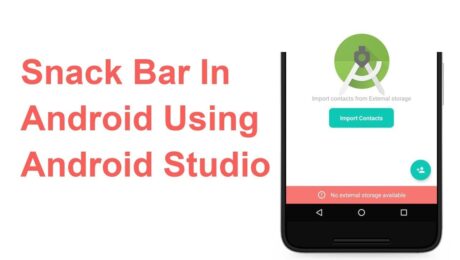
Android Snackbar is an interesting component introduced with the Material Design. Snackbars are very similar to the Toast messages with a few exceptions but the biggest is that provide action to interact with. Snackbar will be displayed at the bottom of the screen and can be swiped away in order to dismiss them.
Major Difference between Toast and Snackbar messages
- Toast message can be customized as well as displayed anywhere on the screen, however, Snackbar can be only shown at the bottom
- Toast messages cannot display action controllers but Snackbars optionally can display them
- Toast message remains on the screen until their time limit is mean but Snackbars can be swiped off before time expiring
note: similar to toast you have three different values for time limit
Implementing Snackbar
To begin this project is being created in Android Studio but any IDE that has the SDK for development can produce the same result. We begin by opening the ide and selecting “Create New Project”. Select “Empty Activity” and fill out the detail of the application and make sure with “Language” you select Java.
note: if you’re using Kotlin please review this tutorial
After the project is created open build.gradle and add the latest stable Material Design Dependency.
dependencies {
     implementation 'com.google.android.material:material:1.3.0'
}
By using the material dependency, you can also create components like Cardview, Recyclerview, and other things as well… If interested in learning to incorporate other material components review the below links.
Styling the App
<style name="AppTheme"
    parent="Theme.MaterialComponents.Light.NoActionBar">
    <item name="colorPrimary">@color/colorPrimary</item>
    <item name="colorPrimaryDark">@color/colorPrimary</item>
    <item name="colorAccent">@color/colorPrimary</item>
</style>
Method Creation
Open your MainActivity.java and we will begin by creating the following methods:
- Basic Snackbar
- As you can see the syntax is the default setup of the Snackbar. Please take note of the make function which accepts the following parameters. View, expected message to display and then the duration of the message to display.
public void basicSnack(View v){
    Snackbar sb = Snackbar.make(cl, "This is a basic Snackbar Display", Snackbar.LENGTH_SHORT);
    sb.show();
}
- Action Basic Snackbar
- Within this method, we reference a callback interaction using setAction(). This allows you to take a certain action when the user interacts with a Snackbar
public void basicActionSnack(View v) {
    Snackbar sb = Snackbar.make(cl, "Snackbar with Action Feature", Snackbar.LENGTH_SHORT);
    sb.setAction("Undo", new View.OnClickListener() {
        @Override
        public void onClick(View v) {
            Toast.makeText(getApplicationContext(), "Undo action", Toast.LENGTH_SHORT).show();
        }
    });
    sb.show();
}
- Custom Basic Snackbar
- By default, Snackbar text color is set to white with the default background #323232 but these features can be overwritten
public void basicCustomSnack( View v) {
    Snackbar sb = Snackbar.make(cl, "Custom Snackbar", Snackbar.LENGTH_SHORT);
    sb.setAction("Undo", new View.OnClickListener() {
        @Override
        public void onClick(View v) {
            Toast.makeText(getApplicationContext(), "Undoing Action", Toast.LENGTH_SHORT).show();
        }
    });

    sb.setActionTextColor(Color.CYAN);
    View sbv = sb.getView();
    TextView tv = sbv.findViewById(R.id.snackbar_text);
    tv.setTextColor(Color.GREEN);

    sb.show();
}
Let’s check the completed code
<!-- main activity xml-->
<?xml version="1.0" encoding="utf-8"?>
<androidx.coordinatorlayout.widget.CoordinatorLayout
    xmlns:android="http://schemas.android.com/apk/res/android"
    xmlns:app="http://schemas.android.com/apk/res-auto"
    android:layout_width="match_parent"
    android:layout_height="match_parent"
    android:id="@+id/app_Coordinator"
    android:fitsSystemWindows="true"
    android:orientation="vertical">

    <com.google.android.material.appbar.AppBarLayout
        android:layout_width="match_parent"
        android:layout_height="wrap_content"
        android:background="?attr/colorPrimary">

        <androidx.appcompat.widget.Toolbar
            android:layout_width="match_parent"
            android:layout_height="?attr/actionBarSize"
            android:id="@+id/toolbar"
            android:theme="@style/ToolbarStyle"
            app:title="@string/app_name"
            app:popupTheme="@style/ThemeOverlay.AppCompat.Light" />

    </com.google.android.material.appbar.AppBarLayout>
    <include layout="@layout/app_content" />

    <com.google.android.material.floatingactionbutton.FloatingActionButton
        android:layout_width="wrap_content"
        android:layout_height="wrap_content"
        android:layout_gravity="bottom|end"
        android:layout_margin="10dp"
        android:src="@drawable/ic_add_black"
        android:contentDescription="TODO" />
</androidx.coordinatorlayout.widget.CoordinatorLayout>
<!--container xml -->
<?xml version="1.0" encoding="utf-8"?>
<androidx.appcompat.widget.LinearLayoutCompat xmlns:android="http://schemas.android.com/apk/res/android"
    android:layout_width="match_parent"
    android:layout_height="wrap_content"
    xmlns:app="http://schemas.android.com/apk/res-auto"
    app:layout_behavior="@string/appbar_scrolling_view_behavior"
    android:padding="10dp"
    android:orientation="vertical">

    <androidx.appcompat.widget.AppCompatButton
        android:layout_width="match_parent"
        android:layout_height="wrap_content"
        android:text="@string/basic_snack"
        android:onClick="basicSnack" />

    <androidx.appcompat.widget.AppCompatButton
        android:layout_width="match_parent"
        android:layout_height="wrap_content"
        android:text="@string/basic_action_snack"
        android:onClick="basicActionSnack" />

    <androidx.appcompat.widget.AppCompatButton
        android:layout_width="match_parent"
        android:layout_height="wrap_content"
        android:text="@string/basic_custom_snack"
        android:onClick="basicCustomSnack" />

</androidx.appcompat.widget.LinearLayoutCompat>
// main activity
public class MainActivity extends AppCompatActivity {
    private CoordinatorLayout cl;
    private Toolbar tb;

    @Override
    protected void onCreate(Bundle savedInstanceState) {
        super.onCreate(savedInstanceState);
        setContentView(R.layout.activity_main);

        cl = findViewById(R.id.app_Coordinator);
        tb = findViewById(R.id.toolbar);
        setSupportActionBar(tb);
    }

    public void basicSnack(View v){
        Snackbar sb = Snackbar.make(cl, "This is a basic Snackbar Display", Snackbar.LENGTH_SHORT);
        sb.show();
    }

    public void basicActionSnack(View v) {
        Snackbar sb = Snackbar.make(cl, "Snackbar with Action Feature", Snackbar.LENGTH_SHORT);
        sb.setAction("Undo", new View.OnClickListener() {
            @Override
            public void onClick(View v) {
                Toast.makeText(getApplicationContext(), "Undo action", Toast.LENGTH_SHORT).show();
            }
        });

        sb.show();
    }

    public void basicCustomSnack( View v) {
        Snackbar sb = Snackbar.make(cl, "Custom Snackbar", Snackbar.LENGTH_SHORT);
        sb.setAction("Undo", new View.OnClickListener() {
            @Override
            public void onClick(View v) {
                Toast.makeText(getApplicationContext(), "Undoing Action", Toast.LENGTH_SHORT).show();
            }
        });

        sb.setActionTextColor(Color.CYAN);

        View sbv = sb.getView();
        TextView tv = sbv.findViewById(R.id.snackbar_text);
        tv.setTextColor(Color.GREEN);

        sb.show();
    }
}
To conclude
I hope you found this reading helpful and if you need further assistance don’t hesitate to contact me for additional assistance. If you are also interested in seeing other tutorials that are not present please hit my line and with
- Published in Android, Java, Programming Languages, Tutorial