
Gesture Controls for Android w/Kotlin
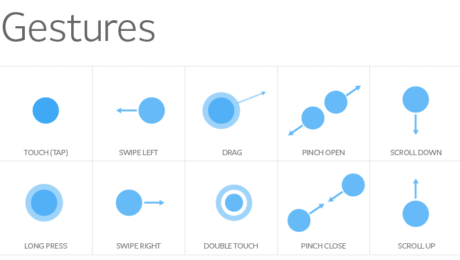
If you have never used or unaware of what is gestures control. Incorporating gesture functionality makes an app more functional and engaging for users. As you will find in this tutorial the objective will be to implement two different types of gestures in the application. Assuming this is not your first rodeo lets dive into the development process.
Project Creation
Well of course you need somewhere to start so firing up your Android Studio it you haven’t already. Select the project you prefer to use but for this tutorial we are going to use the “Empty Activity” template just to keep it simple. (If you require more content on the different templates check out: Blah Blah)
NOTE: minimum SDK for this project is 5.0
Update Activity Layout
After you project has finished loading and building itself, we are going to head over ‘activity_main.xml’. First let’s change the parent layout from constraint to frame layout. Withing the frame we are going to use the Material Cardview and inside the card view we will add the constraint layout. Last the constraint layout will hold the important stuff which are buttons and text view. Let’s see how the code looks altogether.
<?xml version="1.0" encoding="utf-8"?>
<com.google.android.material.circularreveal.CircularRevealFrameLayout xmlns:android="http://schemas.android.com/apk/res/android"
    xmlns:app="http://schemas.android.com/apk/res-auto"
    xmlns:tools="http://schemas.android.com/tools"
    android:layout_width="match_parent"
    android:layout_height="match_parent"
    android:id="@+id/layout_parent"
    android:background="@color/design_default_color_primary"
    tools:context=".MainActivity">

    <com.google.android.material.card.MaterialCardView
        android:layout_width="match_parent"
        android:layout_height="match_parent"
        android:id="@+id/cv_display"
        android:layout_gravity="center"
        android:layout_margin="20dp"
        app:cardCornerRadius="15dp">

        <androidx.constraintlayout.widget.ConstraintLayout
            android:layout_width="match_parent"
            android:layout_height="match_parent">

            <androidx.appcompat.widget.AppCompatTextView
                android:id="@+id/tv_question"
                android:layout_width="wrap_content"
                android:layout_height="wrap_content"
                android:layout_marginTop="20dp"
                android:text="@string/txt_question_value"
                android:textSize="70sp"
                app:layout_constraintEnd_toEndOf="parent"
                app:layout_constraintStart_toStartOf="parent"
                app:layout_constraintTop_toTopOf="parent" />

            <androidx.appcompat.widget.AppCompatTextView
                android:id="@+id/tv_solution"
                android:layout_width="wrap_content"
                android:layout_height="wrap_content"
                android:layout_below="@id/tv_question"
                android:layout_marginTop="10dp"
                android:text="@string/txt_answer_value"
                android:textSize="40sp"
                app:layout_constraintBottom_toTopOf="@id/tv_points"
                app:layout_constraintEnd_toEndOf="parent"
                app:layout_constraintStart_toStartOf="parent"
                app:layout_constraintTop_toBottomOf="@id/tv_question" />

            <com.google.android.material.floatingactionbutton.FloatingActionButton
                android:id="@+id/btn_addition"
                android:layout_width="wrap_content"
                android:layout_height="wrap_content"
                android:layout_below="@id/tv_question"
                android:contentDescription="@string/txt_add_descriptor"
                android:src="@drawable/ic_baseline_add_24"
                app:layout_constraintEnd_toEndOf="parent"
                app:layout_constraintBottom_toBottomOf="@+id/tv_solution"
                app:layout_constraintStart_toEndOf="@+id/tv_solution"
                app:layout_constraintTop_toTopOf="@+id/tv_solution" />

            <com.google.android.material.floatingactionbutton.FloatingActionButton
                android:id="@+id/btn_subtraction"
                android:layout_width="wrap_content"
                android:layout_height="wrap_content"
                android:layout_below="@id/tv_question"
                android:layout_toStartOf="@+id/tv_solution"
                android:contentDescription="@string/txt_minus_descriptor"
                android:src="@drawable/ic_baseline_remove_24"
                app:layout_constraintBottom_toBottomOf="@id/tv_solution"
                app:layout_constraintEnd_toStartOf="@+id/tv_solution"
                app:layout_constraintStart_toStartOf="parent"
                app:layout_constraintTop_toTopOf="@+id/tv_solution" />

            <androidx.appcompat.widget.AppCompatTextView
                android:id="@+id/tv_points"
                android:layout_width="wrap_content"
                android:layout_height="wrap_content"
                android:layout_below="@id/tv_solution"
                android:layout_marginBottom="30dp"
                android:text="@string/txt_string_score"
                android:textSize="30sp"
                app:layout_constraintBottom_toBottomOf="parent"
                app:layout_constraintEnd_toEndOf="@id/btn_addition"
                app:layout_constraintStart_toStartOf="@id/btn_subtraction" />

        </androidx.constraintlayout.widget.ConstraintLayout>
    </com.google.android.material.card.MaterialCardView>
</com.google.android.material.circularreveal.CircularRevealFrameLayout>
inner class GestureControlListener : GestureDetector.SimpleOnGestureListener() {

        override fun onFling(evt1: MotionEvent, evt2: MotionEvent, xVelocity: Float, yVelocity: Float) : Boolean {

            pts -= 75
            generateQuestion(userAnsw)
            view.setBackgroundColor(Random.nextInt())

            Snackbar.make(view, "Skipped", Snackbar.LENGTH_SHORT).show()
            cv.text = "Current Score: $pts"
            return true
        }
}
Writing Kotlin Code
Now we’ll create an inner class for detecting gestures that extends to ‘GestureDetector.SimpleOnGestureListener’. Within the class we will keep it simple and override the two functions that detects fling and double tap gestures.
class MainActivity : AppCompatActivity() {

    /** Global Variables Start **/
    //gesture
    lateinit var gdc: GestureDetectorCompat

    ///Textviews
    lateinit var qv: AppCompatTextView
    lateinit var sv: AppCompatTextView
    lateinit var cv: AppCompatTextView

    //Buttons
    lateinit var ab: FloatingActionButton
    lateinit var sb: FloatingActionButton

    //view
    lateinit var view:FrameLayout

    //integer variables
    var pts = 0
    var userAnsw = 0
    var questionValue1 = 0
    var questionValue2 = 0
    /** Global Variables end **/

    override fun onCreate(savedInstanceState: Bundle?) {
        super.onCreate(savedInstanceState)
        setContentView(R.layout.activity_main)
    }

}
Comprehending what we just declared. First the GestureDetectorCompat object contains functions which we will override to enable us to respond to the different gestures. Then we have the next 6 variables that are associated with the Views within the cardview. Then the variables that will represent the score along with the users answer, and then the question that is displayed to the user.
Setup Views and Listeners
We’ll start by referring to all our views. After we have accomplished that will set up onClickListerners to increase or decrease with the floating action button. Now that the click listeners are set, we need to define a way to generate new questions for the user to answer. We’ll create a function called generateQuestion that accepts a numeric parameter. The objective of the function will assign two random numbers based on the parameter passed in and assigned to the variable created earlier questionValue1 and questionValue2.
class MainActivity : AppCompatActivity() {

    /** Global Variables Start **/
    //gesture
    lateinit var gdc: GestureDetectorCompat

    ///Textviews
    lateinit var qv: AppCompatTextView
    lateinit var sv: AppCompatTextView
    lateinit var cv: AppCompatTextView

    //Buttons
    lateinit var ab: FloatingActionButton
    lateinit var sb: FloatingActionButton

    //view
    lateinit var view:FrameLayout

    //integer variables
    var pts = 0
    var userAnsw = 0
    var questionValue1 = 0
    var questionValue2 = 0
    /** Global Variables end **/

    override fun onCreate(savedInstanceState: Bundle?) {
        super.onCreate(savedInstanceState)
        setContentView(R.layout.activity_main)

        //lets do some work
        view = findViewById<FrameLayout>(R.id.layout_parent)
        qv =  findViewById(R.id.tv_question)
        sv = findViewById(R.id.tv_solution)
        cv = findViewById(R.id.tv_points)
        ab = findViewById(R.id.btn_addition)
        sb = findViewById(R.id.btn_subtraction)

        //assign listeners
        ab.setOnClickListener {
            userAnsw++
            sv.text = "$userAnsw"
        }

        sb.setOnClickListener {
            userAnsw--
            sv.text = "$userAnsw"
        }

        generateQuestion(userAnsw)
    }


    //generate question function for user
    fun generateQuestion(num: Int) {
        var randomNum = 0
        randomNum = if (num == 0) 12
        else num

        questionValue1 = Random.nextInt(randomNum)
        questionValue2 = Random.nextInt(randomNum)

        val problem = "$questionValue1 + $questionValue2"
        qv.text = problem
    }
}
Creating an Inner Class
Now we’ll create an inner class for detecting gestures that extends to ‘GestureDetector.SimpleOnGestureListener’. Within the class we will keep it simple and override the two functions that detects fling and double tap gestures.
class MainActivity : AppCompatActivity() {

    /** Global Variables Start **/
    //gesture
    lateinit var gdc: GestureDetectorCompat

    ///Textviews
    lateinit var qv: AppCompatTextView
    lateinit var sv: AppCompatTextView
    lateinit var cv: AppCompatTextView

    //Buttons
    lateinit var ab: FloatingActionButton
    lateinit var sb: FloatingActionButton

    //view
    lateinit var view:FrameLayout

    //integer variables
    var pts = 0
    var userAnsw = 0
    var questionValue1 = 0
    var questionValue2 = 0
    /** Global Variables end **/

    override fun onCreate(savedInstanceState: Bundle?) {
        super.onCreate(savedInstanceState)
        setContentView(R.layout.activity_main)

        //lets do some work
        view = findViewById<FrameLayout>(R.id.layout_parent)
        qv =  findViewById(R.id.tv_question)
        sv = findViewById(R.id.tv_solution)
        cv = findViewById(R.id.tv_points)
        ab = findViewById(R.id.btn_addition)
        sb = findViewById(R.id.btn_subtraction)

        //assign listeners
        ab.setOnClickListener {
            userAnsw++
            sv.text = "$userAnsw"
        }

        sb.setOnClickListener {
            userAnsw--
            sv.text = "$userAnsw"
        }

        generateQuestion(userAnsw)
    }


    //generate question function for user
    fun generateQuestion(num: Int) {
        var randomNum = 0
        randomNum = if (num == 0) 12
        else num

        questionValue1 = Random.nextInt(randomNum)
        questionValue2 = Random.nextInt(randomNum)

        val problem = "$questionValue1 + $questionValue2"
        qv.text = problem
    }

    /**
    *
    * */
    inner class GestureControlListener : GestureDetector.SimpleOnGestureListener() {


    }
}
The function we just wrote above objective is supposed to detect the fling gesture and when a user uses the fling gesture the application will skip the question and displays a new question. Then we call the function generateQuestion and new questions will be assigned to the AppCompatTextview. A brief message will appear to inform the user that the question was skipped.
class MainActivity : AppCompatActivity() {

    /** Global Variables Start **/
    //gesture
    lateinit var gdc: GestureDetectorCompat

    ///Textviews
    lateinit var qv: AppCompatTextView
    lateinit var sv: AppCompatTextView
    lateinit var cv: AppCompatTextView

    //Buttons
    lateinit var ab: FloatingActionButton
    lateinit var sb: FloatingActionButton

    //view
    lateinit var view:FrameLayout

    //integer variables
    var pts = 0
    var userAnsw = 0
    var questionValue1 = 0
    var questionValue2 = 0
    /** Global Variables end **/

    override fun onCreate(savedInstanceState: Bundle?) {
        super.onCreate(savedInstanceState)
        setContentView(R.layout.activity_main)

        //lets do some work
        view = findViewById<FrameLayout>(R.id.layout_parent)
        qv =  findViewById(R.id.tv_question)
        sv = findViewById(R.id.tv_solution)
        cv = findViewById(R.id.tv_points)
        ab = findViewById(R.id.btn_addition)
        sb = findViewById(R.id.btn_subtraction)

        //assign listeners
        ab.setOnClickListener {
            userAnsw++
            sv.text = "$userAnsw"
        }

        sb.setOnClickListener {
            userAnsw--
            sv.text = "$userAnsw"
        }

        generateQuestion(userAnsw)
    }

    //generate question function for user
    fun generateQuestion(num: Int) {
        var randomNum = 0
        randomNum = if (num == 0) 12
        else num

        questionValue1 = Random.nextInt(randomNum)
        questionValue2 = Random.nextInt(randomNum)

        val problem = "$questionValue1 + $questionValue2"
        qv.text = problem
    }

    /**
    *
    * */
    inner class GestureControlListener : GestureDetector.SimpleOnGestureListener() {

        override fun onFling(evt1: MotionEvent, evt2: MotionEvent, xVelocity: Float, yVelocity: Float) : Boolean {

            pts -= 75
            generateQuestion(userAnsw)
            view.setBackgroundColor(Random.nextInt())

            Snackbar.make(view, "Skipped", Snackbar.LENGTH_SHORT).show()
            cv.text = "Current Score: $pts"
            return true
        }

    }
}
Now we’ll add another function to override in the inner class which is onDoubleTap. As you are probably already aware this function detects a double tap gesture. The double tap gesture will act as a submission for the user answers to the question presented. Upon submission the answer is checked in the conditional and they are found equal the user score is increased and reflected in the view. A new problem is generated but if is found not to be equal then a deduction from the score is applied and brief message is display to the user before generating a new question.
inner class GestureControlListener : GestureDetector.SimpleOnGestureListener() {

        override fun onFling(evt1: MotionEvent, evt2: MotionEvent, xVelocity: Float, yVelocity: Float) : Boolean {

            pts -= 75
            generateQuestion(userAnsw)
            view.setBackgroundColor(Random.nextInt())

            Snackbar.make(view, "Skipped", Snackbar.LENGTH_SHORT).show()
            cv.text = "Current Score: $pts"
            return true
        }


        override fun onDoubleTap(evt: MotionEvent?): Boolean {

            if (userAnsw == questionValue1 + questionValue2) pts = 100*125
            else {
                pts -= 125
                view.setBackgroundColor(Color.RED)
                Snackbar.make(view, "Incorrect", Snackbar.LENGTH_SHORT).show()
            }

            generateQuestion(userAnsw)
            cv.text = "Current Score: $pts"
            return true
        }
}
Finally, we need to override onTouch in the MainActivity. When a touch is detected the function fires, so we’ll use this function to call the gestureDetector onTouchEventFunction.
class MainActivity : AppCompatActivity() {

    /** Global Variables Start **/
    //gesture
    lateinit var gdc: GestureDetectorCompat

    ///Textviews
    lateinit var qv: AppCompatTextView
    lateinit var sv: AppCompatTextView
    lateinit var cv: AppCompatTextView

    //Buttons
    lateinit var ab: FloatingActionButton
    lateinit var sb: FloatingActionButton

    //view
    lateinit var view:FrameLayout

    //integer variables
    var pts = 0
    var userAnsw = 0
    var questionValue1 = 0
    var questionValue2 = 0
    /** Global Variables end **/

    override fun onCreate(savedInstanceState: Bundle?) {
        super.onCreate(savedInstanceState)
        setContentView(R.layout.activity_main)

        //lets do some work
        view = findViewById<FrameLayout>(R.id.layout_parent)
        qv =  findViewById(R.id.tv_question)
        sv = findViewById(R.id.tv_solution)
        cv = findViewById(R.id.tv_points)
        ab = findViewById(R.id.btn_addition)
        sb = findViewById(R.id.btn_subtraction)

        //assign listeners
        ab.setOnClickListener {
            userAnsw++
            sv.text = "$userAnsw"
        }

        sb.setOnClickListener {
            userAnsw--
            sv.text = "$userAnsw"
        }

        generateQuestion(userAnsw)
        gdc = GestureDetectorCompat(this, GestureControlListener())
    }

    override fun onTouchEvent(evt: MotionEvent): Boolean {
        gdc.onTouchEvent(evt)
        return true
    }

    //generate question function for user
    fun generateQuestion(num: Int) {
        var randomNum = 0
        randomNum = if (num == 0) 12
        else num

        questionValue1 = Random.nextInt(randomNum)
        questionValue2 = Random.nextInt(randomNum)

        val problem = "$questionValue1 + $questionValue2"
        qv.text = problem
    }

    /**
    *
    * */
    inner class GestureControlListener : GestureDetector.SimpleOnGestureListener() {

        override fun onFling(evt1: MotionEvent, evt2: MotionEvent, xVelocity: Float, yVelocity: Float) : Boolean {

            pts -= 75
            generateQuestion(userAnsw)
            view.setBackgroundColor(Random.nextInt())

            Snackbar.make(view, "Skipped", Snackbar.LENGTH_SHORT).show()
            cv.text = "Current Score: $pts"
            return true
        }


        override fun onDoubleTap(evt: MotionEvent?): Boolean {

            if (userAnsw == questionValue1 + questionValue2) pts = 100*125
            else {
                pts -= 125
                view.setBackgroundColor(Color.RED)
                Snackbar.make(view, "Incorrect", Snackbar.LENGTH_SHORT).show()
            }

            generateQuestion(userAnsw)
            cv.text = "Current Score: $pts"
            return true
        }
    }
}
Install, Test, Conclude
Use the virtual or install on your device. When you increase or decrease the answer to the sum of the presented question. To submit your answer then double tap and if the answer is correct, you score will increase and a new problem will be presented to you. However, if you fling across the screen then problem is skipped, and a message is displayed to your user. With that I believe we have accomplished the task set out before us. If you are confused about anything, please don’t hesitate to contact me or check out the github repository on the project. You now have the “JUICE”!
Note: This class override a variety of functions
- Published in Android, blog, Kotlin, Mobile Development, Programming Languages, Tutorial
QR Reader in Android w/ Kotlin

You may have noticed that QR codes are popping up all around and many of us have become accustomed to using these codes to quickly access information. As a developer know that qr codes are quick, easy, convenient, and alluring for users to scan. Within this read you will learn to implement a QR code scanner in Android Studio with very few steps.
Project Creation
Well of course you need somewhere to start so firing up your Android Studio it you haven’t already. Select the project you prefer to use but for this tutorial we are going to use the “Empty Activity” template just to keep it simple. (If you require more content on the different templates check out: Blah Blah)
NOTE: minimum SDK is 7.0
Adding Gradle Dependency and Manifest
Before we can access the class from ZXing we need to import the dependency to the module build.gradle file. (I always suggest using the latest stable version with that I suggest using the project structure when import dependencies) We also need to add permission to the AndroidMainfest.xml to access to the camera.
NOTE: If you are not familiar with using the Project Structure, please see blog regarding this feature in android studio.
// build.gradle
dependencies {

    implementation 'androidx.core:core-ktx:1.7.0'
    implementation 'androidx.appcompat:appcompat:1.3.0'
    implementation 'com.google.android.material:material:1.4.0'
    implementation 'androidx.constraintlayout:constraintlayout:2.0.4'
    implementation 'com.journeyapps:zxing-android-embedded:4.3.0' //added
    testImplementation 'junit:junit:4.13.2'
    androidTestImplementation 'androidx.test.ext:junit:1.1.3'
    androidTestImplementation 'androidx.test.espresso:espresso-core:3.4.0'
}
// AndroidMainifest.xml
<manifest xmlns:android="http://schemas.android.com/apk/res/android"
    package="com.programmingninja.qrreader">

    <uses-permission android:name="android.permission.CAMERA" />

    <application
        android:allowBackup="true"
        android:icon="@mipmap/ic_launcher"
        android:label="@string/app_name"
        android:roundIcon="@mipmap/ic_launcher_round"
        android:supportsRtl="true"
        android:theme="@style/Theme.QRReader">
        <activity
            android:name=".MainActivity"
            android:exported="true">
            <intent-filter>
                <action android:name="android.intent.action.MAIN" />
                <category android:name="android.intent.category.LAUNCHER" />
            </intent-filter>
        </activity>
    </application>
</manifest>
Updating Layout
Now that we have completed the lightweight stuff lets begin by updating the activity_main.xml. We are going to keep the ConstraintLayout and add within it AppCompatTextView and AppCompatImageButton.
<?xml version="1.0" encoding="utf-8"?>
<androidx.constraintlayout.widget.ConstraintLayout xmlns:android="http://schemas.android.com/apk/res/android"
    xmlns:app="http://schemas.android.com/apk/res-auto"
    xmlns:tools="http://schemas.android.com/tools"
    android:layout_width="match_parent"
    android:layout_height="match_parent"
    tools:context=".MainActivity">

    <androidx.appcompat.widget.AppCompatTextView
        android:layout_width="wrap_content"
        android:layout_height="wrap_content"
        android:id="@+id/tv_message"
        android:text="Tap Button Below to Begin Scanning!"
        app:layout_constraintBottom_toBottomOf="parent"
        app:layout_constraintLeft_toLeftOf="parent"
        app:layout_constraintRight_toRightOf="parent"
        app:layout_constraintTop_toTopOf="parent" />

    <androidx.appcompat.widget.AppCompatImageButton
        android:layout_width="wrap_content"
        android:layout_height="wrap_content"
        android:id="@+id/img_btn_qr"
        app:layout_constraintBottom_toBottomOf="parent"
        app:layout_constraintEnd_toEndOf="parent"
        app:layout_constraintStart_toStartOf="parent"
        app:layout_constraintTop_toBottomOf="@+id/tv_message"
        android:src="@drawable/ic_baseline_qr_code_scanner_24"/>
</androidx.constraintlayout.widget.ConstraintLayout>
Finally Some Kotlin Writing
Within this class we need to use the ZXing IntentIntegrator to override the onActivityResult function. IntentIntegrator allows us to start the scanner with a few lines of code. The result will then appear in our Activity’s and if the user has not provided permission, yet they are present a message to provide access. After access is provided and user scans a code a new AlertDialog is present to perform action from the QR code itself. I will provide the code and blew the snippet you will be informed of everything is greater detail
package com.programmingninja.qrreader

import android.app.SearchManager
import android.content.DialogInterface
import android.content.Intent
import androidx.appcompat.app.AppCompatActivity
import android.os.Bundle
import androidx.appcompat.app.AlertDialog
import androidx.appcompat.widget.AppCompatButton
import androidx.appcompat.widget.AppCompatImageButton
import androidx.appcompat.widget.AppCompatTextView
import com.google.zxing.integration.android.IntentIntegrator

@Suppress("DEPRECATION")
class MainActivity : AppCompatActivity() {
    override fun onCreate(savedInstanceState: Bundle?) {
        super.onCreate(savedInstanceState)
        setContentView(R.layout.activity_main)

        val msgTxt:AppCompatTextView = findViewById(R.id.tv_message)
        val imgBtn:AppCompatImageButton = findViewById(R.id.img_btn_qr)

        imgBtn.setOnClickListener {
            val intentIntegrator = IntentIntegrator(this)

            intentIntegrator.setDesiredBarcodeFormats(listOf(IntentIntegrator.QR_CODE))
            intentIntegrator.initiateScan()
        }
    }

    override fun onActivityResult(requestCode: Int, resultCode: Int, data: Intent?) {
        super.onActivityResult(requestCode, resultCode, data)

        val res = IntentIntegrator.parseActivityResult(resultCode,data)

        if (res != null) {
            AlertDialog.Builder(this).setMessage("Would you like to go to ${res.contents}?")
                .setPositiveButton("Accept", DialogInterface.OnClickListener{
                    dialogInterface, i -> val intent = Intent(Intent.ACTION_WEB_SEARCH)
                    intent.putExtra(SearchManager.QUERY, res.contents)
                    startActivity(intent)
                })
                .setNegativeButton("Deny", DialogInterface.OnClickListener{ dialogInterface, i ->  })
                .create()
                .show()
        }
    }
}
Let’s first review the onCreate function, we are referencing the views in the layout, then we assign an OnClickListener to our AppCompatImageButton which then use an instance of IntentIntegrator which begin the scan. We are settubg tge setDesiredBarcodeFormats function on the variable intentIntegrator. This function allows us to narrow down our barcode format to only focus. The ZXing IntentIntegrator class has support for several barcode formats, however for this tutorial we are going to focus on QR codes. Start the scan using the variable iIntegrator initiateScan function.
Now we create a function called onActivityResult and for this function to work we have to call the super.OnActivityResult function. In this function we create a variable called ‘res’ which holds the data collected from iIntegrator parseActivityResult function. Inside the function is a conditional statement to check if the scan is empty
Within the statement, we build an AlertDialog with a positive and negative button and each button have an action assigned to them. If the positive button is selected then an Intent will be used to start an internet search with QR code’s data but if the negative button is selected then user remains within the app.
Install, Test and Verify
If everything is implemented correctly, we can test the app, run it in the android studio and install it on a device. Now that the app installed, the app will open automatically and display the text and image button. when the user it will request permission to access the camera in your Setting. The camera reads the code and presents it in the AlertDialog a message that is stored in the qr code.

android-tutorial (this link opens in a new window) by daurislittle (this link opens in a new window)
Android Tutorial beginner and advance
- Published in Android, blog, Kotlin, Programming Languages, Tutorial
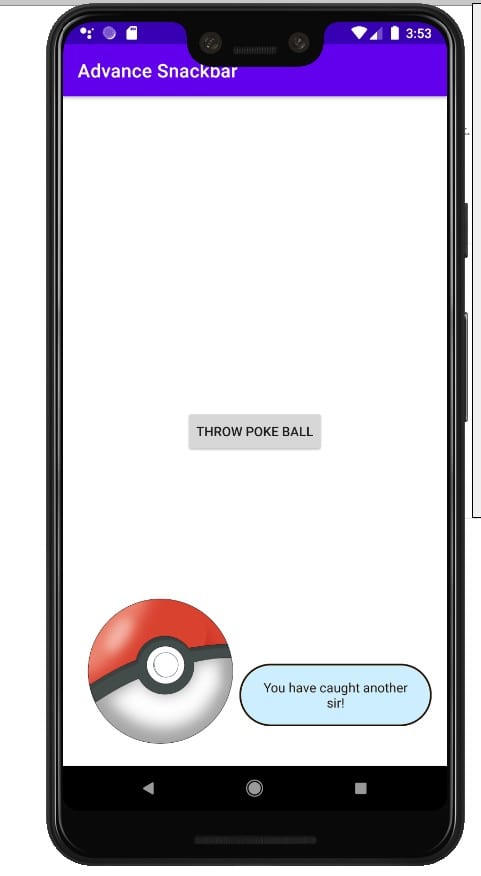
Creating Advance Custom Snackbar w/ Kotlin

Ask 100 different developers about what they find most exciting about android development and you will get as many different responses. Personally, I find the customization of the various framework and design libraries. Consider it as such if there is something that doesn’t fit your needs within the development process that as a developer we create custom views without any issues. Within this post, we will be working on a custom Snackbar.
What is a Snackbar? Well simply enough a Snackbars provide lightweight feedback about an operation. They show a brief message at the bottom of the screen on mobile and lower left on larger devices. Snackbars appear above all other elements on screen and only one can be displayed at a time.
Though the Snackbar by default has a few customizable features, consider the fact that the default features may not match the application style. Fortunately, we can easily create a custom Snackbar by implementing just a few classes. If you are unfamiliar with what a Snackbar is please review my previous post regarding the library. Be aware that it may be a little confusing at glance but fear not we will review it the most important part that is to highlight which are:
BottomTransientBottomBarwhich is the parent view- ContentViewCallback
make()a factory method- find the parent view, inflate the custom view, and set additional properties
- customizable method
Custom View
It is assumed that you have already created/opened your current project within your IDE. Now we create a custom view that will be displayed at the bottom of the screen when called. This design will be the simplest form which contains an image and static message.
class CustomSnackbarView @JvmOverloads constructor(context: Context, attrs: AttributeSet? = null, defStyleAttr: Int = 0) : ConstraintLayout (context, attrs, defStyleAttr) {

    private val customImg : AppCompatImageView

    init {
        View.inflate(context, R.layout.view_custom_snackbar, this)
        clipToPadding = false
        this.customImg = findViewById(R.id.img_snack)
    }
}
this is accompanied by the following layout XML
<?xml version="1.0" encoding="utf-8"?>
<merge
    xmlns:android="http://schemas.android.com/apk/res/android"
    xmlns:tools="http://schemas.android.com/tools"
    xmlns:app="http://schemas.android.com/apk/res-auto"
    android:layout_width="match_parent"
    android:layout_height="wrap_content"
    tools:parentTag="androidx.constraintlayout.widget.ConstraintLayout">

    <androidx.appcompat.widget.AppCompatImageView
        android:layout_width="173dp"
        android:layout_height="173dp"
        android:id="@+id/img_snack"
        android:scaleType="centerInside"
        app:layout_constraintBottom_toBottomOf="parent"
        app:layout_constraintLeft_toLeftOf="parent"
        app:layout_constraintStart_toStartOf="parent"
        app:srcCompat="@drawable/pokeball" />

    <androidx.appcompat.widget.AppCompatTextView
        android:layout_width="0dp"
        android:layout_height="wrap_content"
        android:id="@+id/tv_snack"
        android:gravity="center"
        android:padding="16dp"
        android:text="You have caught another sir!"
        android:textColor="#28140c"
        android:background="@drawable/custom_snackbar_bg"
        app:layout_constraintEnd_toEndOf="parent"
        app:layout_constraintRight_toRightOf="parent"
        app:layout_constraintBottom_toBottomOf="@+id/img_snack"
        app:layout_constraintLeft_toRightOf="@+id/img_snack"
        app:layout_constraintStart_toEndOf="@+id/img_snack"
        app:layout_constraintTop_toTopOf="@+id/img_snack"
        app:layout_constraintVertical_bias="0.75" />
</merge>
Implementation of Custom View
Now the objective is to implement ContentViewCallback. The interface objective is to notify when the Snackbar starts appearing and dismissing using animateContentIn() and animateContentOut()
class CustomSnackbarView @JvmOverloads constructor(context: Context, attrs: AttributeSet? = null, defStyleAttr: Int = 0) : ConstraintLayout (context, attrs, defStyleAttr), ContentViewCallback {

    private val customImg : AppCompatImageView

    init {
        View.inflate(context, R.layout.view_custom_snackbar, this)
        clipToPadding = false
        this.customImg = findViewById(R.id.img_snack)
    }

    override fun animateContentIn(delay: Int, duration: Int) {
        val scaleX = ObjectAnimator.ofFloat(customImg, View.SCALE_X, 0f, 1f)
        val scaleY = ObjectAnimator.ofFloat(customImg, View.SCALE_Y, 0f, 1f)
        AnimatorSet().apply {
            interpolator = OvershootInterpolator()
            setDuration(500)
            playTogether(scaleX,scaleY)
        }.start()

    }

    override fun animateContentOut(delay: Int, duration: Int) {
        TODO("Not yet implemented")
    }

}
Take note that there is a simple scale animation as the Snackbar appears. Now setting the clipToPadding to false is important to avoid the image from clipping because of OvershootInterpolator.
Extending BaseTransientBottomBar
We are now at the point to create an equivalent class for the Snackbar.
The custom Snackbar constructor accepts two params: one for the parent view and another for the custom view that supports the implementation of ContentViewCallback.
class CustomSnackbar(parent: ViewGroup, content: CustomSnackbarView) : BaseTransientBottomBar<CustomSnackbar>(parent, content, content) {

}
Now to implement the entry point method make(). As stated earlier in this post, there are three things to accomplish:
- There is no reason to attempt and recreate the wheel so we will borrow the logic from the Snackbar’s source code
internal fun View?.findParent(): ViewGroup? {

    var view = this
    var fallback: ViewGroup? = null

    do {
        if (view is CoordinatorLayout) {
            //the Coordinator layout has been found
            return view
        } else if (view is FrameLayout) {
            if (view.id == android.R.id.content) {
                //coordinator layout not found so we need to use the appropriate hierarchy
                return view
            } else {
                //if no view assign the fallback
                fallback = view
            }
        }

        if (view != null) {
            //will continue to search for the view
            val parent = view.parent
            view = if (parent is View) parent else null
        }
    } while (view != null)

    return fallback
}
- Inflate the custom view
- inflating a custom view is best done by using the XML layout
<?xml version="1.0" encoding="utf-8"?>
<com.programmingninja.advancesnackbar.snackbar.CustomSnackbarView
    xmlns:android="http://schemas.android.com/apk/res/android"
    android:layout_width="match_parent"
    android:layout_height="wrap_content"
    android:padding="8dp" />
- Build and correct errors
class CustomSnackbar(parent: ViewGroup, content: CustomSnackbarView) : BaseTransientBottomBar<CustomSnackbar>(parent, content, content) {

    companion object {
        fun make(view: View) : CustomSnackbar{

            //set parent for this view
            val parent = view.findParent() ?: throw IllegalArgumentException("No suitable parent found from the correct view. Please correct.")

            //custom view inflated
            val customView = LayoutInflater.from(view.context).inflate(R.layout.activity_snackbar, parent, false) as CustomSnackbarView

            //creation and return this new snackbar
            return CustomSnackbar(parent, customView)
        }

    }
}
If we attempt to run the code, you will notice that there is a gray background and padding. Why is this? This is because the BaseBottomTransientBar implementation is wrapped with the SnackbarBasrLayout. The workaround for this issue is simple enough by adding an init() block
init {
        getView().setBackgroundColor(ContextCompat.getColor(view.context, android.R.color.transparent))
        getView().setPadding(0,0,0,0)
}
Wrapping it altogether
Modify the MainActivity with the following
class MainActivity : AppCompatActivity() {
    override fun onCreate(savedInstanceState: Bundle?) {
        super.onCreate(savedInstanceState)
        setContentView(R.layout.activity_main)

        findViewById<View>(R.id.btn_catch_em).setOnClickListener {
            CustomSnackbar.make(it).show()
        }
    }
}
Now we need to modify the main activity layout
<?xml version="1.0" encoding="utf-8"?>
<androidx.constraintlayout.widget.ConstraintLayout
    xmlns:android="http://schemas.android.com/apk/res/android"
    xmlns:app="http://schemas.android.com/apk/res-auto"
    xmlns:tools="http://schemas.android.com/tools"
    android:layout_width="match_parent"
    android:layout_height="match_parent"
    tools:context=".MainActivity">

    <androidx.appcompat.widget.AppCompatButton
        android:layout_width="wrap_content"
        android:layout_height="wrap_content"
        android:id="@+id/btn_catch_em"
        android:layout_margin="8dp"
        android:text="Throw Poke Ball"
        app:layout_constraintEnd_toEndOf="parent"
        app:layout_constraintStart_toStartOf="parent"
        app:layout_constraintTop_toTopOf="parent"
        app:layout_constraintBottom_toBottomOf="parent" />
</androidx.constraintlayout.widget.ConstraintLayout>
- Published in Android, Kotlin, Programming Languages, Tutorial
“Structs vs Classes” and using them

This is because it plays a significant role in choosing the right abstraction mechanism keeping both performance and modeling in mind. As you can only imagine this topic is simply the tip of the iceberg. Many advanced concepts and questions of classes and structs in swift. With that being, I have broken this topic into two parts.
Structs & Classes — What are they?
Consider them like templates or guidebook that contains variables and methods used to all object of the said kind. In short, they assist in keeping the code organized for future maintenance and reusability.
Class features over structs
- Inheritance
- inherit the characteristics of another class
- Type-casting
- checks and interprets the type of a class instance at runtime
- Deinitializers
- enable an instance of a class to free up any resources it has assigned
- Reference Count
- allows multiple references to a class instance
Value & reference types
- Value types
- each instance keeps an independent copy of its data
- example: structs, enums, or tuples
- changing one instance will have no effect on the other
- each instance keeps an independent copy of its data
- reference type
- Instances share a single copy of the data.
- changing data in one instance will change the data for all instance pointing to the same instance
- example: classes
Deciding to class or struct
when deciding on a new model we, as developers, should carefully contemplate the use cases of the model. With that stated, you should decide between structs and classes.
using classes:
class Network {
   var url:String
   init(url:String) {
      self.url = url
   }
}

var req = Network(url: "https://daurislittle.com")
var newReq = req
newReq.url = "https://facebook.com"

if req === newReq {
   print(req.url)
   print(newReq.url)
}
- comparing instance identity with “===” makes sense
- Creating a shared and mutable state
- if your intent is to share the state among the threads and variables use classes
using structs:
You will note the code below compare the value of the Network URLs and not the memory addresses.
struct Network {
   var url:String
}

extension Network:Equatable{}

let req = Network(url: "https://daurislittle.com")
let newReq = Network(url: "https://facebook.com")

if req == newReq {
   print("Both the request contains the same address")
}
- comparing instance data with “==” makes sense
- data needs to be compared and the memory locations of these data are not important
Now you can see that both the requests have different URLs as each request have a different copy of the URLs
struct Network {
   var url:String
}

extension Network:Equatable{}

var req = Network(url: "https://daurislittle.com")
var newReq = req

newReq.url = "https://facebook.com"

print(req.url) //https://daurislittle.com
print(newReq.url) //https://facebook.com
Now you can see that both the requests have different URLs as each request have a different copy of the URLs
- Data can be used in code across multiple threads
- when passing and copying value types in a multi-threaded environment we can be sure that each context will have a separate unique copy which will not impact the others
- This helps avoid a lot of unintentional bugs
- when passing and copying value types in a multi-threaded environment we can be sure that each context will have a separate unique copy which will not impact the others
Memory Allocation w/structs and classes
structs are allocated in the stack memory. References of the class objects can be created on the stack but all the properties of the class’s object will be kept in the heap
Reference counting
As stated above classes support heap allocations they need to maintain reference counts for allocation and deallocating objects. On the other hand, structs do not need reference counting. However, if structs contain references then they would incur twice the number of reference counting overhead as compared to a class.
Method Dispatching
Classes use method dispatch but if a class is marked as “final“, the compiler will use static dispatch. Stucts uses “static” dispatch.
Memberwise initializers
Memberwise initializers are those initializers which the compiler generates automatically for structs. We can initialize a struct’s object using these initializers even though we have not provided any custom initializers.
enum RequestType {
   case get, post, delete
}

struct Network {
   val url:String
   var type:RequestType

   //Memberwise init generated by the compiler
}

var req = Network(url:"https://daurislittle.com", type: .get)
Note: order arguments in these initializers are decided by the order of the declared properties in struct.
However, as a developer we can write any custom initializer, the compiler now though will not generate the memberwise initializer. You can use both generated memberwise and custom initializers, just need to add the custom initializer within the extension of the struct.
enum RequestType {
   case get, post, delete
}

struct Network {
   val url:String
   var type:RequestType //Memberwise init generated by the compiler
}

extension Network {
   initi(URL:String) {
      self = Network.init(url: url, type: .get)
   }
}

var req = Network.init(url:"https://daurislittle.com")
Keyword “mutating” and when to use it
When changing the property of any struct, using the keyword “mutating” before the “func” keyword when defining a method. This is because the self parameter that’s implicitly passed into every method is immutable by default.
extension Network {
   mutating func updateUrl(url:String) {
      self.url = url
   }
}
//self is passed as a var
The “mutating” keyword allows the compiler to decide which methods can’t be called on let constants. If we try to call a mutating method on a “let” constants. If we try to call the mutating method on a let variable, the compiler shows an error.
- Published in blog, iOS, Programming Languages, Swift
View Binding w/Android
View Binding Purposes?
note: View binding is a feature that allows you to more easily write code that interacts with views. Once view binding is enabled in a module, it generates a binding class for each XML layout file present in that module. An instance of a binding class contains direct references to all views that have an ID in the corresponding layout.
View Binding is part of Android Jetpack. View Binding was introduced at the Android Talk at Google IO/19. Let’s learn more about this. In most cases, view binging replaces findViewById. Ultimately the findViewById, is used to declare the view variable for x times to use it. It makes a lot of boilerplate code inside the view Activity/Fragment. That is why View Binding came to provide a good way to access all views with onlu init one variable.
Key features
- ViewBinding is always null safe and type-safe, which supports both Java and Kotlin.
- ViewBinding is introduced in the Gradle version 3.6 and above (which comes with the Android Studio 4.0, only gradle 3.6).
- ViewBinding also helps to reduce the boilerplate code, hence reducing the code redundancy.
- While using the ViewBinding proper naming conventions are need to be followed because it creates the binding class internally using the name of the same layout file. Naming the layout file in the snake case is preferred. For Example, the ViewBinding creates activity_main.xml(snake case) file as ActivityMainBinding(pascal case), which contains all the property and instances of all the views containing in that layout.
- And also whatever IDs of all elements are created inside the layout XML file, the ViewBinding converts them to camel case. For example: android:id=”button_submit” -> buttonSubmit. Which is much useful in the code readability.
- Using ViewBinding the compilation of the code is a bit faster as compared to the traditional findViewById() method.
- The ActivityMainBinding class is generated in the following path under the project hierarchy this can be viewed.
Before View Binding
class MainActivity: AppCompatActivity() {
   val btnSignIn = findViewById<AppCompatButton>(R.id.btn_signIn)
   val txtUserStatus = findViewById<AppCompatTextView>(R.id.tv_userStatus)

   txtUserStatus?.Text = userProfile?.overview
   btnSignIn?.setOnClickListener {
      Snackbar sb = Snackbar.make(cl, "Successfully login attempt", Snackbar.LENGTH_SHORT);
      sb.show();
   }
}
After View Binding
class MainActivity: AppCompatActivity() {

   val binding = ActivityMainBinding.inflate(layoutInflater)

   binding.tv_UserStatus.text = userProfile?.overview
   binding.btnSignIn.setOnClickListener {
      Snackbar sb = Snackbar.make(cl, "Login Attempt Successful", Snackbar.LENGTH_SHORT);
      sb.show();
   }
}
Why View Binding
If you review the to above code clip you can notice a bit of the differences. For exmple you declare the binding variable from the generated view binding class. Now you can access all the view ids from the binding variable. The main advantages of using View Binding:
- Type Safety
- View binding provide a generated method od the same type as defined in the XML layout.
- Null Safety
- findViewById
Using View Binding
- enable viewBinding and this should take place with build.gradle
buildFeatures {
   viewBinding = true
}
- After enabling viewBinding perform the sync and let’s modify the XML layout
<?xml version="1.0" encoding="utf-8"?>
<androidx.constraintlayout.widget.ConstraintLayout
    xmlns:android="http://schemas.android.com/apk/res/android"
    xmlns:app="http://schemas.android.com/apk/res-auto"
    xmlns:tools="http://schemas.android.com/tools"
    android:layout_width="match_parent"
    android:layout_height="match_parent"
    android:id="@+id/cl_layer"
    tools:context=".MainActivity"
    tools:ignore="">

    <androidx.appcompat.widget.AppCompatTextView
        android:layout_width="match_parent"
        android:layout_height="wrap_content"
        android:id="@+id/tv_header"
        android:text="View Binding w/Kotlin"
        android:textSize="30dp"
        android:textAlignment="center"
        android:layout_marginStart="15dp"
        android:layout_marginTop="150dp"
        app:layout_constraintEnd_toEndOf="parent"
        app:layout_constraintStart_toStartOf="parent"
        app:layout_constraintTop_toTopOf="parent"

        />
    <androidx.appcompat.widget.AppCompatEditText
        android:layout_width="match_parent"
        android:layout_height="wrap_content"
        android:id="@+id/et_message"
        android:layout_marginStart="16dp"
        android:layout_marginEnd="16dp"
        android:layout_marginTop="128dp"
        android:hint="Sir, your text here"
        app:layout_constraintEnd_toEndOf="@id/tv_header"
        app:layout_constraintStart_toStartOf="@id/tv_header"
        app:layout_constraintTop_toBottomOf="@id/tv_header" />

    <androidx.appcompat.widget.AppCompatButton
        android:layout_width="wrap_content"
        android:layout_height="wrap_content"
        android:id="@+id/btn_submit"
        android:layout_marginTop="16dp"
        android:text="Submit"
        app:layout_constraintEnd_toEndOf="@id/et_message"
        app:layout_constraintTop_toBottomOf="@id/et_message" />
</androidx.constraintlayout.widget.ConstraintLayout>
PS: If your view id uses the under_score, it will be generated as a camelCase variable.
- The things that need to be focused on here are, creating the instance of the ViewBinding.
Kotlin
class MainActivity : AppCompatActivity() {

    //create instance ActivityMainBinding
    private lateinit var amb : ActivityMainBinding

    override fun onCreate(savedInstanceState: Bundle?) {
        super.onCreate(savedInstanceState)

        //create the instance of ActivityMainBinding
        val binding = ActivityMainBinding.inflate(layoutInflater)

        //binding.root returns the root layout
        setContentView(binding.root)

        binding.btnSubmit.setOnClickListener {
            val msg = binding.etMessage.text.toString()
            if (!msg.isEmpty()) Snackbar.make(binding.clLayer, binding.etMessage.text.toString(), Snackbar.LENGTH_SHORT).show()
            else Snackbar.make(binding.clLayer, "Message is currently empty", Snackbar.LENGTH_SHORT).show()
        }
    }
}
Java
public class MainActivity extends AppCompatActivity {

    //binding class to the xml
    //allows the system to automatically generate the system
    ActivityMainBinding amb;

    @Override
    protected void onCreate(Bundle savedInstanceState) {
        super.onCreate(savedInstanceState);

        //inflating the xml
        amb = ActivityMainBinding.inflate(getLayoutInflater());

        //retrieve the root layout
        View v = amb.getRoot();

        //ContentView for the layout
        setContentView(v);

        //calling the button and setting the click listener
        //call the button by id and set the click listener
        amb.btnSubmit.setOnClickListener(new View.OnClickListener() {
            @Override
            public void onClick(View v) {

                String msg = amb.etMessage.getText().toString();
                if (!msg.isEmpty()) Snackbar.make(amb.clLayer, amb.etMessage.getText().toString(), Snackbar.LENGTH_SHORT).show();
                else Snackbar.make(amb.clLayer, "Message is empty", Snackbar.LENGTH_SHORT).show();
            }
        });

    }
}
And that’s it. You are done setting up your view using View Binding.
if youre interested in seeing a tutorial on the topic check it out here:
- Published in Android, Java, Kotlin, Programming Languages
allowBackup: Android’s Attributes
If you’ve ever been sky diving, you know that it’s essential to prepare for redundancies in your jump. That way, if one shoot fails you have a spare as your backup. This philosophy isn’t left behind within android and this is accomplished using allowBackup, which helps automatically backing up application data.
allowBackup Purpose
According to the documentation, this feature allows Auto Backup for App automatically backs up a user’s data from apps that target and run on Android 6.0 (API level 23) or later. This can be accomplished in your android app so the user(s) can more quickly recover the data. This feature allows the user to delete the application using any method such as manually deleting/uninstalling the app to using the device “factory reset”, regardless of the method the app will retain the user data when they decide to reinstall. This feature is taken a step further across multiple devices which allows the user to get a new device and this information will be available for a new device.
How Much Data?
When implemented the user can store the data limited to 25MB, which persists across the lifetime of an app being installed on your device. Though that does not sound like a lot in reality it is more than enough to save preferences/settings.
Where Is It Stored?
This data is stored by uploading it to the user’s Google Drive, where it is protected but the user’s account credentials. Don’t worry this data is stored in a private folder on the user’s drive and doesn’t count towards the user’s personal Drive quota.
Note: Only the most recent backup is stored in the drive.
What is Being Backed Up
The default function of this feature includes files in most directories that are assigned within your app by the system:
- shared preferences
getFilesDir()orgetDir(String, int)- Files stored in the app internal storage
getDatabasePath(String)- Files within this directory
getExternalFilesDir()- Files on external storage within this directory
So in short you can configure the application to include as well as exclude any files.
Customizing Your Backup
Within the android manifest, ensure that you add android:fullBackupContent within your application block. This points to an XML file that should contain all the rules for the full backup for the Auto Backup. Follow these steps and you can accomplish the task:
- within the res directory create a directory called xml
- now create an XML file called auto_backup_rules.xml
- Use the syntax include/exclude
- if you use both
include/excludetheincludetag supersede - The path reference within the
includeandexcluderefers to the resource location- Example:
<include domain="database" path="test_db.db"
- Example:
- if you use both
- The backup file should be listed in Android Manifest
- Example:
<application android:fullBackupContent="@xml/auto_backup_rules ... >
- Example:
Triggering the Backup
Backups are triggered automatically when any of the following conditions are met:
- backup must be enabled by the user. From Android 9 this setting is within Setting> System > Backup
- 24 hours has elapsed since the last backup
- The device is not in use
- The device is connected to a stable Wi-Fi network
Should Backups Cause Problem
Android backups rely on the Android Debug Bridge (ADB) command to perform backup and restore. ADB, however, has been a soft target for hackers and is still not trusted by respected developers. The idea that someone can inject malicious code into your backup data is unsettling, to say the least. This generally isn’t a problem for end-users as it requires debugging to be enabled on the device, but since a lot of Android users are fond of exploring and rooting their devices, it can become a serious problem.
Once backed up, all application data can be read by the user. adb restore allows the creation of application data from a source specified by the user. Following a restore, applications should not assume that the data, file permissions, and directory permissions were created by the application itself.
Therefore, applications that handle and store sensitive information such as card details, passwords, etc., should have this setting explicitly set to false — by default, it is set to exclude — to prevent such risks, or you can also customize what needs to be backed up.
If there is anything that is missing or being overlooked please do not hesitate to comment so we can all learn.
- Published in Android, Java, Kotlin, Programming Languages
Using Enum w/Swift
understand enum is nothing fancy and all languages have their version of it. Let’s first understand what is enumeration which is a data type consisting of a set of named values also referred to as members. Apple definition states:
An enumeration defines a common type for a group of related values and enables you to work with those values in a type-safe way within your code.
Swift makes enumerations (enums) very flexible and does not have to provide a value for each case. If a “raw” value is provided for each enumeration case, the value can be a string, a character, integer or floating-point type.
Enum Syntax
implementing enumerations is done with enum keyword and place the definition within your implementation.
enum EnumImplementation {

    // place enum definition
}
//Enum Type Example
enum PokemonGender :String {
    case male
    case female
}
//Enum No Type Example
enum PokemonGender {
    case male
    case female
}
We have created some defined values within the enumeration which are Male and Female and they are now enumeration cases. Use the case keyword to introduce new enumeration cases.
Note: alternative implementation does exist.
Each enumeration definition defines a brand new type. Obviously naming conventions should be respects so names starting with capital letter.
Moving on we can now set a variable to the enum case: var gender: PokemonGender = PokemonGender.male or we can shorten it to var gender = PokemonGender.male
Enums Partying w/Switch Statements
Note: When using enums with switch statements there is no need to use a default case because all the possible enums members are taken care of. This way our enums just needs to be checked an and if all the membeers of the enum are exhuasted then create a default case.
switch gender {
   case .male: print("Gender is male")
   case .female: print("Gender is female")
   //a default case is not needed
}
Defined Values:
Enum case cannot have a raw value if the enum doesn’t have a raw type
Note: enum defined type cannot have other datatypes within the cases
enum PokemonGender {

    //wrong(error): enum case cannot have a raw value if the enum does not have a raw type
    case male = 1

    //correct
    case female

}
You could use enum with defined values if enum is having a “raw” type:
enum PokemonType: Int{

    case Fire = 1, Water, Grass
}
This now enumerates the values and assigns the pokemon their type. Note that with this declaration we have also added the var type after the name enum. To get the value stored in that in the enum member, you need to access its rawValue property as println("Result -> \(type.Water.rawValue)") //prints "2"
Now let’s consider the above enum of Pokemon Type. If fire equals 1, water is given a value of 3, and if grass is not given any value, then the raw value of grass will give you 4
Enum PokemonType: Int {

    case Fire = 1, Water = 3, Grass
}

print(PokemonType.Grass) //prints "4"
Methods and Enum
You may be thinking that enums and methods are foreign friends but that is not the case. Enums can have methods that use enum cases:
enum DOTW:String {

   case Sunday
   case Monday
   case Tuesday
   case Wednesday
   case Thursday
   case Friday
   case Saturday

   func day() ->String {
      return self.rawValue
   }

}

print(DOTW.Monday.day()) //prints Monday
Important: Enums can have methods, subscripts, and computed properties. But it cannot have stored properties
- Published in iOS, Programming Languages, Swift